Quick Start Guide: Installing Cadence Applied Wave Research 25.10 via CADpass Client Secure Connection

Licensing Requirements or Restrictions
Usage terms and conditions apply to this software. For more information, refer to Licensing Requirements or Restrictions on the associated product page:

Table of Contents

CADpass client secure connection (will be referred to as CADpass client or CADpass in this document) is a utility provided by CMC Microsystems that creates a secure connection between client PCs, workstations, and computer sessions, and the CMC-managed infrastructure.

This quick start guide provides instructions for installing Cadence Applied Wave Research (AWR) software on Microsoft Windows using a CMC CADpass client to access shared licenses on the CMC License Management System (LMS). The procedure has been tested on a Windows 11, 64-bit system.

Prerequisites

  • Professors, Research Supervisors, and their research teams must register with CMC at https://fabricinnovation.ca/member/.
  • Professors and Research Supervisors can subscribe through the CMC subscription page at https://www.cmc.ca/subscriptions/.
  • You must complete all required agreements for this software use, which may be obtained from CMC Technical Support.
  • You must have administrator rights for the workstation on which you are installing this software.
  • You must have a unique login name (Linux or Windows) that does not contain a blank space. A username such as “charlie brown” contains a space, while usernames such as “charlie.brown” or “charlie_brown” do not contain spaces.

    The following are examples of unacceptable login names because they are not unique: “admin”, ”administrator”, ”root”, ”sysadm”, ”user”, ”owner”, ”student”, ”guest”, “temp”, and ”system”.
System Requirements

Software Requirements

See Cadence-supported operating systems.

Hardware Requirements

Cadence support staff recommends the following hardware (local workstation) to achieve satisfactory simulation performance.

Specification Minimum Preferred
CPU 64-bit CPU, with AVX support 64-bit, multicore, with AVX support
RAM 8 GB More than 32 GB
Disk Space More than 2 GB More than 10 GB

Setting up CADpass client for Use with Cadence AWR

CADpass client is a CMC Microsystems’ license access client and is used by subscribers across Canada to connect to our secure license server(s).

  1. Follow the instructions in the quick start guide to download and install the CADpass client.
  2. Start the CADpass client and log in using your CMC Microsystems Username and Password.
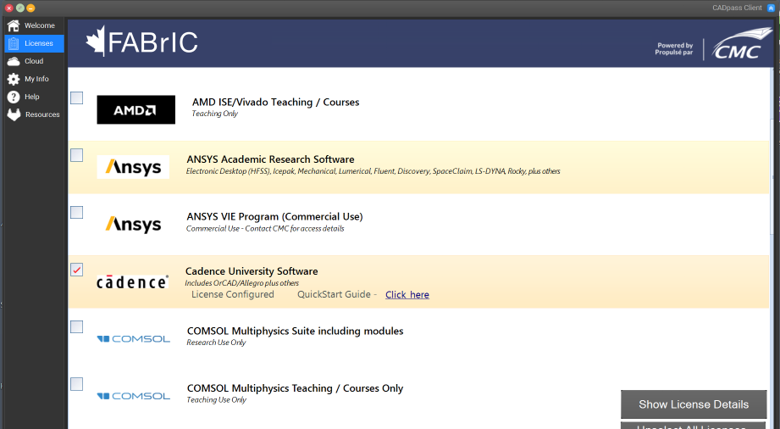
  3. When the CAD access window appears, double-click Cadence.

A red checkmark appears next to the entry, as shown in Figure 1. Leave this checked while you are using the software.

Figure 1: A Red Check Mark Next to the Cadence Entry Indicates a Request for a License

Obtaining the Software

Download the installation files from the CMC Microsystems website: https://www.cmc.ca/tools/.

Installing the Software

The AWR software is an installation file available from the CMC Microsystems website.

  1. In the temporary directory, locate and launch the executable file Hotfix_AWR25.*_wint_1of1.
    The dialogue Welcome to the Cadence AWR Design Environment Setup is displayed, as shown in Figure 2.
CQSG-0113-fig2
Figure 2: Introductory Cadence Installation Dialogue
  1. Click Next.
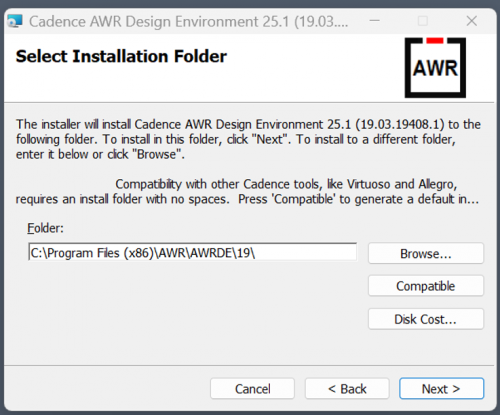
    The dialogue Select Installation Folder appears, as shown in Figure 3.
CQSG-0113-fig3
Figure 3: Change Installation Directory if Desired
  1. Enter or browse to the installation directory, and click Next.
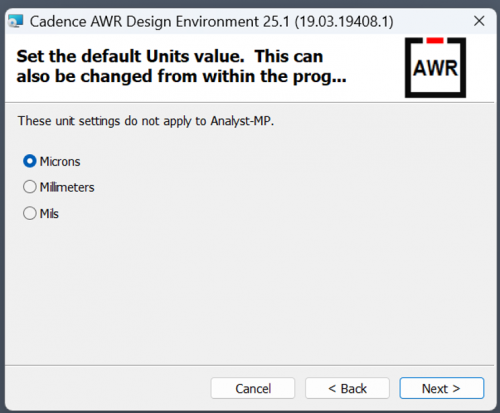
    The dialogue Set the default Units value is displayed, as shown in Figure 4.
CQSG-0113-fig4
Figure 4: Choose the Default units Value
  1. Choose a default unit value for your work: microns, mils, or millimetres, and click Next.
  2. (Optional) Associate file extensions with AWR.
  3. Click Next.
    The dialogue Confirm Installation appears.
  4. Click Next to start the installation.
    The dialogue Installing Cadence AWR Design Environment appears, with the installation progress, as shown in Figure 5. When the installation is complete, the dialogue Installation Complete appears.
CQSG-0113-fig5
Figure 5: Installer Confirmation Message
  1. Click Close to complete the installation.

Setting up Cadence AWR License Access

Before starting AWR, the CADpass client must be running.

  1. Start the CADpass client and log into your account using your CMC Microsystems Username and Password.
  2. In the CADpass client window, select the Cadence license icon, as shown in Figure 1. When using the software to enable licence server access, keep the Appgate client up and connected.
  3. On your workstation, go to the Start menu | AWRDE (64bit) entry, and select AWR Design Environment.
    The dialogue AWR License Features appears.
  4. Make your feature selections and click OK to start AWR.
    The AWR software is launched.
Note: CMC offers all AWR features in the current year’s academic bundle. Contact [email protected] for more information.

Troubleshooting

If the tool fails to install properly, contact CMC Support for help with diagnosing the problem at https://www.cmc.ca/support/.

Additional Support Resources

The following are suggestions about resources that may be helpful:

  • A Getting Started Guide bundled with this installation is listed under the AWR software menu Help | Getting Started.
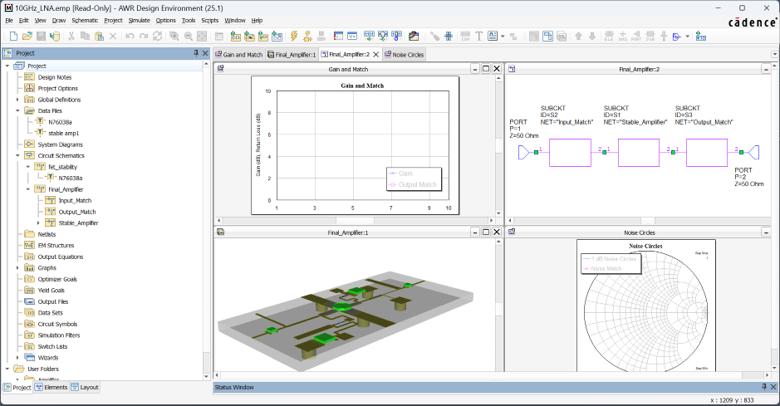
  • Many examples are bundled with AWR and will open when selected from the Help menu. One such example is shown in Figure 6.
Figure 6: Cadence AWR Example Supplied with the Software
  • To set up a Cadence academic online training account through which to take RF and microwave courses, contact [email protected].
Does your research benefit from products and services provided by CMC Microsystems?
Scroll to Top
Skip to content