CAD

FABrIC Logo white

Quick Start Guide: Installing Altium Designer Software and Accessing the License via CADpass Client Secure Connection

Licensing Requirements or Restrictions
Usage terms and conditions apply to this software. For more information, refer to Licensing Requirements or Restrictions on the associated product page:

Table of Contents

CADpass client secure connection (will be referred to as CADpass client or CADpass in this document) is a utility provided by CMC Microsystems that creates a secure connection between client PCs, workstations, and computer sessions, and the CMC-managed infrastructure.

This quick start guide provides instructions for installing Altium Designer Software on a Windows 10 system using CMC Microsystems’ CADpass to access shared licenses on the CMC License Management System (LMS).

The installation file of Altium Designer is available to download from www.altium.com. You need the Altium account provided to you by the CMC license administrator to download the installation file. If you do not have the Altium account yet, contact licensing@cmc.ca.

Prerequisites

  • Professors, Research Supervisors, and their research teams must register with CMC at https://fabricinnovation.ca/member/.
  • Professors and Research Supervisors can subscribe through the CMC subscription page at https://www.cmc.ca/subscriptions/.
  • You must complete all required agreements for this software use, which may be obtained from CMC Technical Support.
  • You must have administrator rights for the workstation on which you are installing this software.
  • You must have a unique login name (Linux or Windows) that does not contain a blank space. A username such as “charlie brown” contains a space, while usernames such as “charlie.brown” or “charlie_brown” do not contain spaces.

    The following are examples of unacceptable login names because they are not unique: “admin”, ”administrator”, ”root”, ”sysadm”, ”user”, ”owner”, ”student”, ”guest”, “temp”, and ”system”.
System Requirements

Windows 11 (64-bit only)

Setting up CADpass client for Use with Altium Designer

CADpass client is a CMC Microsystems’ license access client and is used by subscribers across Canada to connect to our secure license server(s).

  1. Follow the instructions in the quick start guide to download and install CADpass client.
  2. Start CADpass client and then log in using your CMC Microsystems Username and Password.
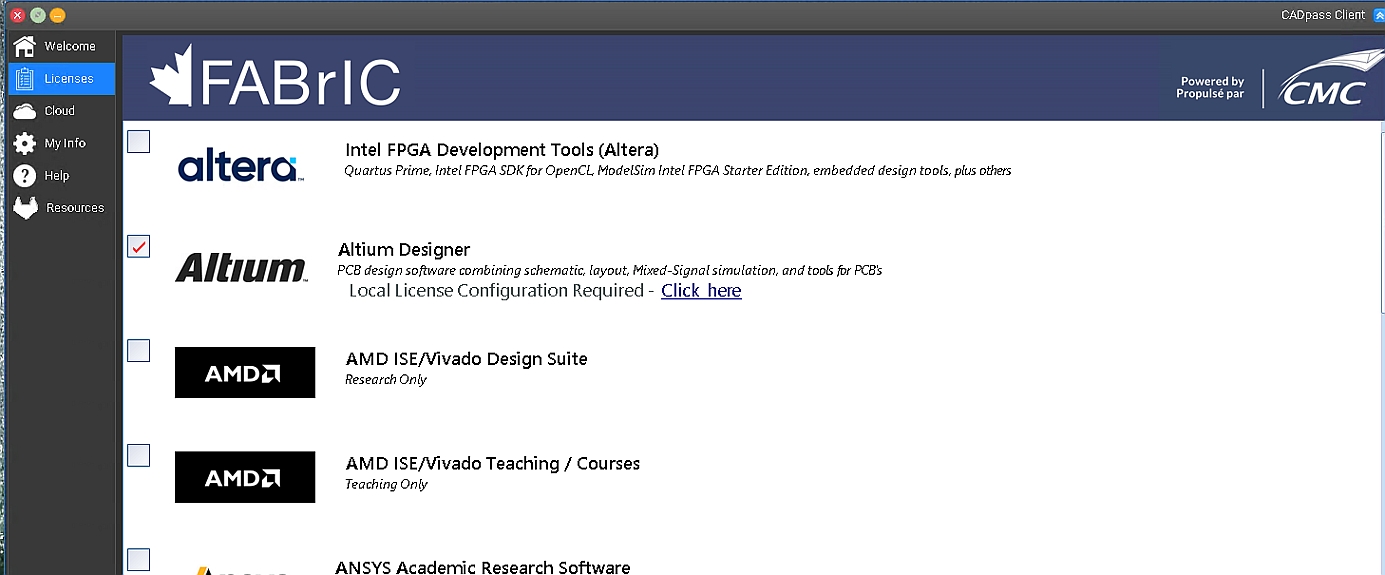
  3. When the CAD access window appears, double-click  Altium.
    A red checkmark appears next to the entry, as shown in Figure 1. Leave this checked while you are using the software.
CQSG-0075-Fig1
Figure 1: The Altium Designer Selection in CADpass Client

Obtaining and Installing the Software

  1. Create a download directory on your PC to store the downloadable, for example, C:\download\AltiumRepository.
  2. Log in to the website https://live.altium.com/#Home.
  3. Download the Altium Designer Installer from http://www.altium.com/product/downloads.
  4. Double-click the file Altium Designer Installer. For Altium 20, the file name is AltiumDesignerSetup_25_8_1.exe.
  5. On the page Welcome to Altium Designer Installer, click Next.
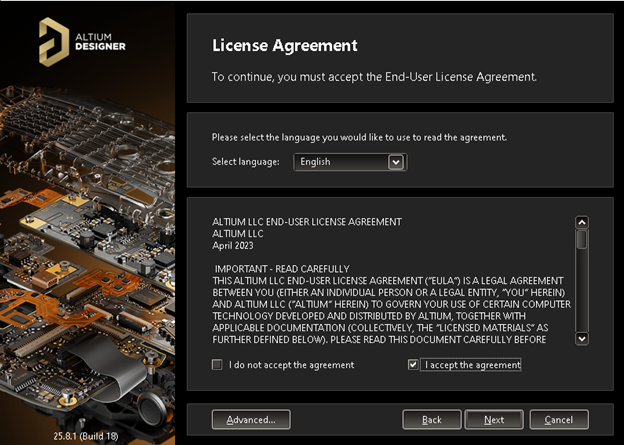
    The window License Agreement appears, as shown in Figure 2.
Figure 2: License Agreement
  1. Check I accept the agreement, and click Next.
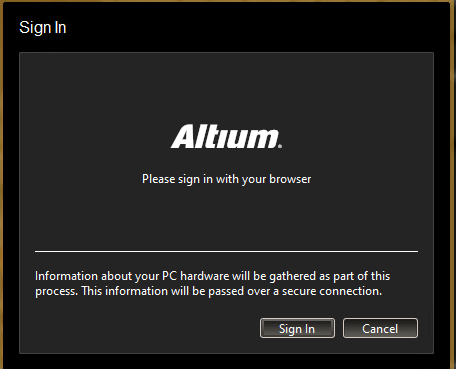
    The window Account Log In appears, as shown in Figure 3.
Figure 3: Altium Account Log In
  1. Log in using the Altium account that you obtained from CMC’s License Administrator, and click Login.
    The window Select Design Functionality appears, as shown in Figure 4.
Figure 4: Select Design Functionality
  1. Check the boxes for the functionality you need, and click Next.
    The window Destination Folders appears. You can keep the default location as the installation destination.
  2. Click Next.
    The window Customer Experience Improvement Program appears. You may choose to participate or not.
  3. Click Next.
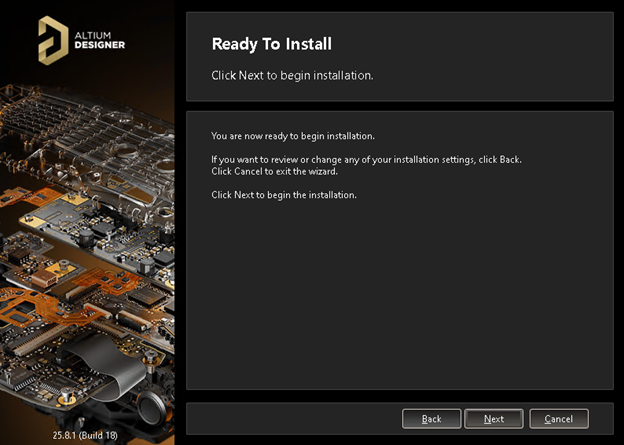
    The window Ready to Install appears, as shown in Figure 5.
Figure 5: Ready to Install
  1. To start the installation, click Next.
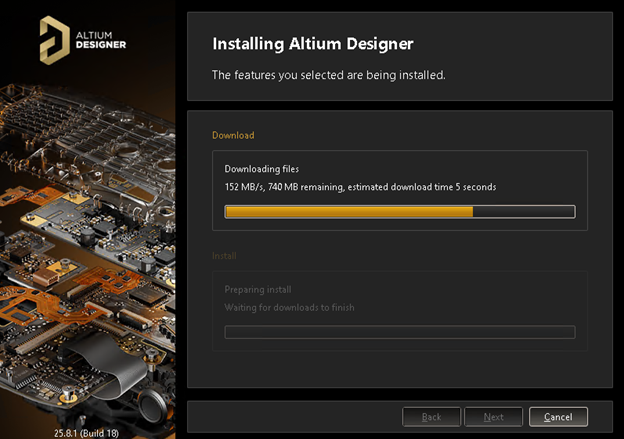
    The window Installing Altium Designer appears, as shown in Figure 6.
Figure 6: Installing Altium Designer

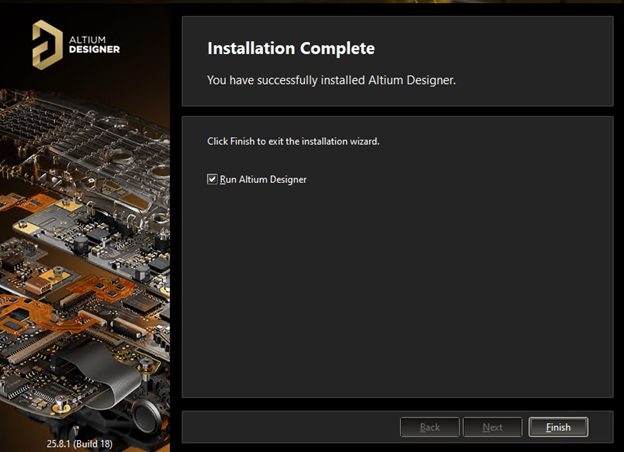
The installer first downloads the installation files and then starts the installation. It takes a few minutes to finish the installation. When the installation is finished, the window Installation Complete appears, as shown in Figure 7.

Figure 7: Installation Complete
  1. Check the box Run Altium Designer, and click Finish.

The installation of the Altium Designer is now complete. The next section provides your with instructions to configure the license within the Altium Designer tool.

Setting up Altium Designer License Access

  1. Make sure CADpass client is running and Altium is selected as indicated in the section CADpass client for Use with Altium Designer.
  2. Start Altium Designer.
    The window License Management appears, as shown in Figure 8.
CQSG-0075-Fig8
Figure 8: License Management Window (click to enlarge)
  1. Click Sign Out, as shown in Figure 8.
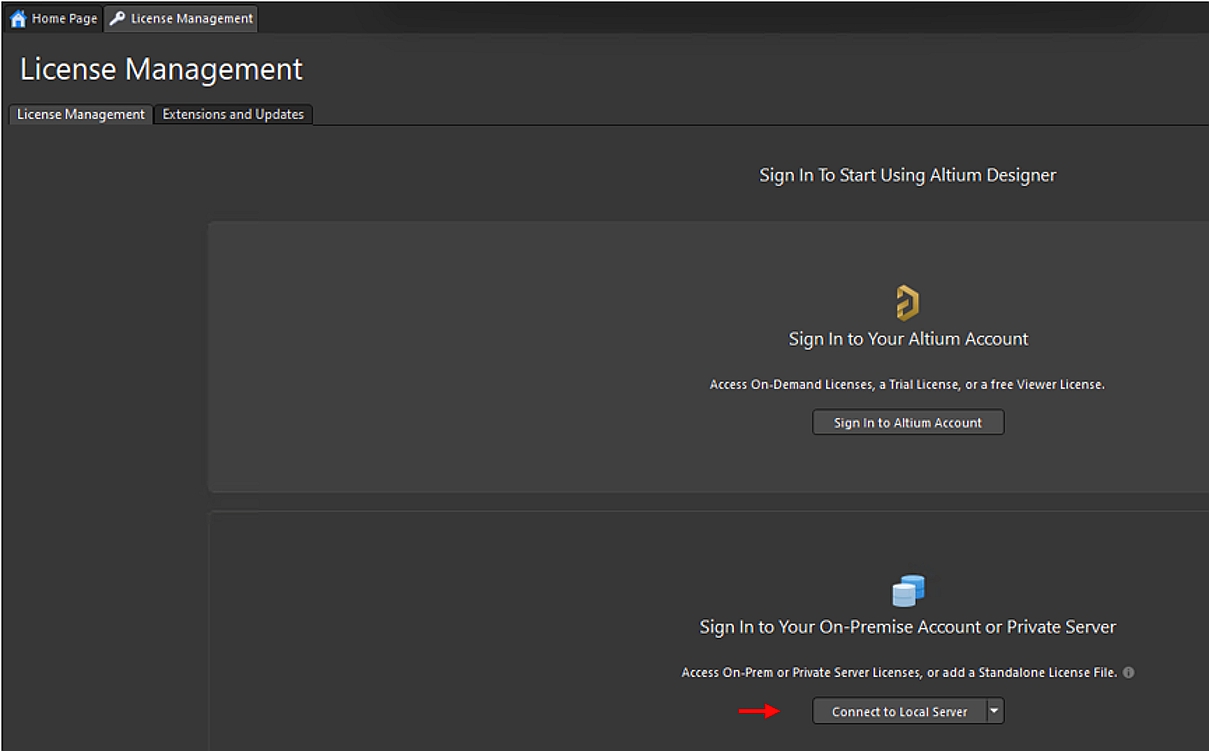
    The Sign in dialogue appears, as shown in Figure 9.
CQSG-0075-Fig9
Figure 9: License Management of Altium Designer (click to enlarge)
  1. Click Connect to Local Server, as shown in Figure 9.
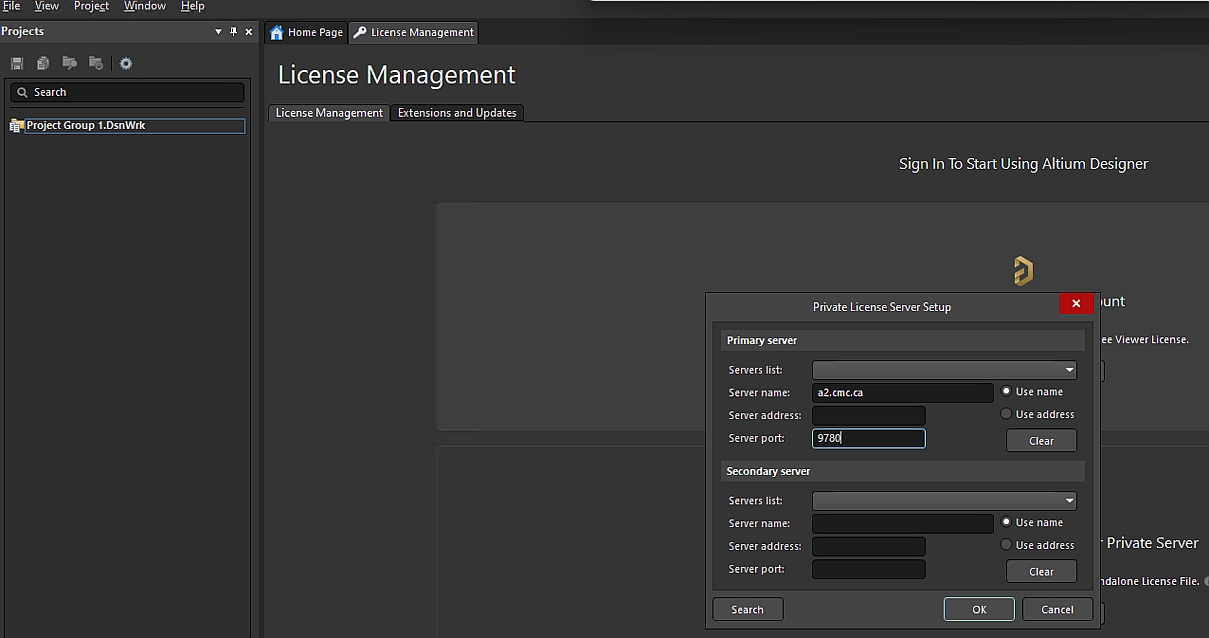
    The dialogue Private License Server Setup appears, as shown in Figure 10.
CQSG-0075-Fig10
Figure 10: Setting up Private License Server (click to enlarge)
  1. Set the Server name to a2.cmc.ca, and the Server port to 9780.
    Note: Always check CADpass Licensing Information for the latest Server name and Server port.
  2. Click OK.
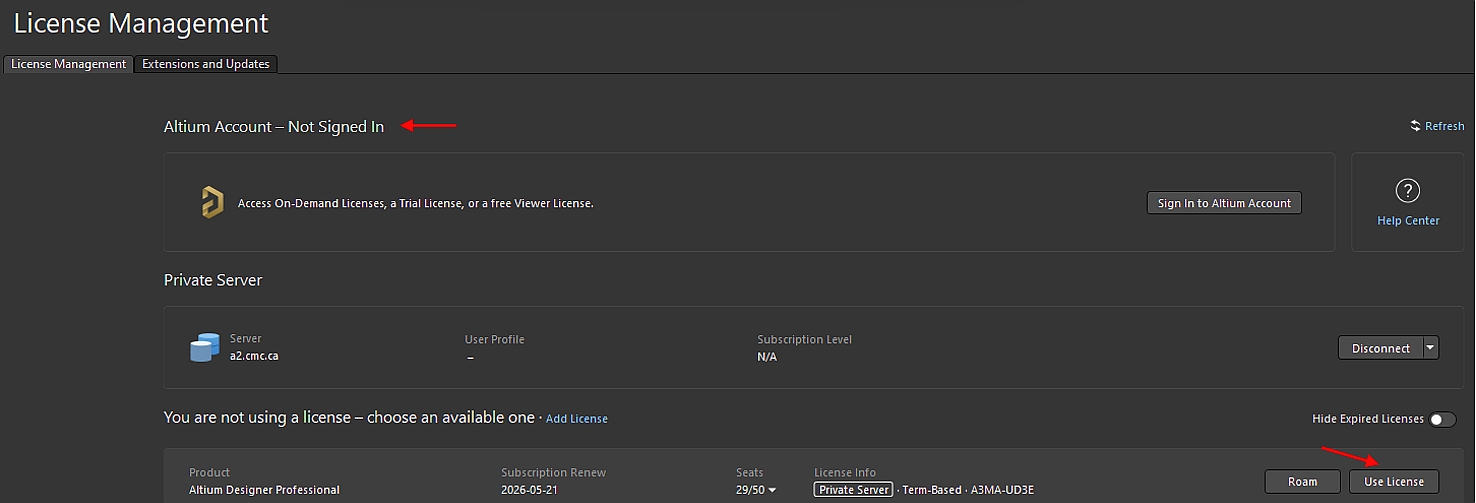
    The Available Licenses section shows the license information you are accessing, as shown in Figure 11.
CQSG-0075-Fig11
Figure 11: Use License and Available Licenses (click to enlarge)
  1. Click Use License to use Altium Designer Professional, as shown in Figure 11.
    Note: Ensure the license you selected is NOT expired.

Need support for products and services?

Does your research benefit from products and services provided by CMC Microsystems?
Scroll to Top

Quantum Computing Sandbox Call—Round 1

OPEN

Application Deadline:
January 19, 2026 9:00 pm EST

Skip to content