System Requirements
- A PDF reader is required to open some of the tutorials and manuals included with the Synopsys Code V and Light Tools software.
- A file extraction program such as 7-Zip or WinZip to extract the downloaded program installation files from .zip format.
- 64-bit Windows: Windows 10 or Windows 11.
- RAM Required: 8 GB minimum, 16G recommended (or more for extremely large models or large simulations).
- 64-bit Linux: We officially support Red Hat Enterprise Linux (RHEL) 5 and 6.
Setting up CADpass Client for Use with Synopsys Optical Solutions (Code V and LightTools) Software
CADpass client is a CMC Microsystems’ license access client and is used by subscribers across Canada to connect to our secure license server(s).
- Follow the instructions in the quick start guide to download and install CADpass client.
- Start CADpass client and then log in using your CMC Microsystems Username and Password.
- When the CAD access window appears, check Synopsys CODE V/LightTools Software.
An orange checkmark appears next to the entry, as shown in Figure 1. Leave this checked while you are using the software.
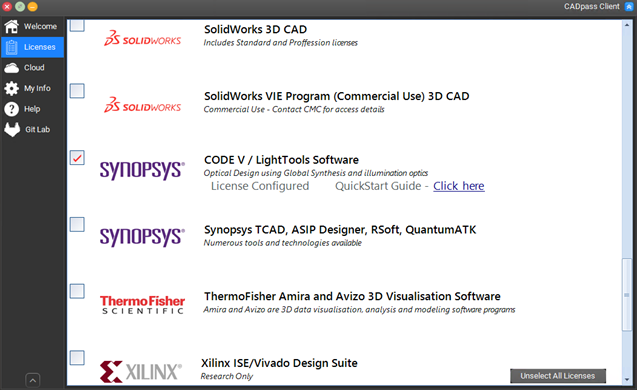
Figure 1: The Synopsys Selection in CADpass Client
Obtaining the Software
- Sign in to your CMC account.
- Go to the Synopsys tools download page.
- Click the Synopsys Optical Solutions download link.
- Follow the instructions to download the installation files..
Installing the Software
The Synopsys Code V and Light Tools installation files are in a compressed format (*.zip), which is not executable. The actual installer must be extracted from this file using a file compression program. You may use Windows, or a program such as 7-Zip, to extract the compressed files. You can install Code V and Light Tools separately.
Installing Code V
- Locate the Code V installation file.
- Double-click the installer version corresponding to your computer’s operating system. The installer program has a file format of CODEVyyyymmFCS.exe.
The installer wizard appears. - Follow the default prompts. The default program files installation location is C:\\ CODEVyyyy.mm.
- When the dialogue box License Installation Options appears, ensure the box My License is for Synopsys Common Licensing is unchecked, as shown in Figure 2.
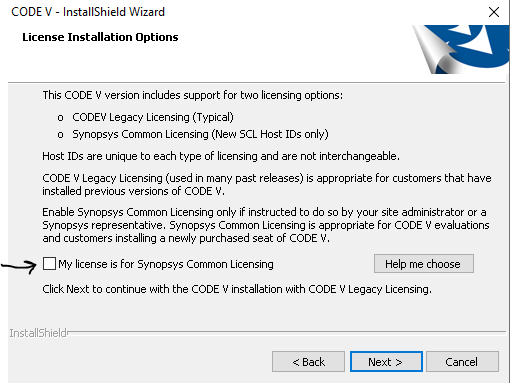
Figure 2: Code V License Installation Options
- When the dialogue box entitled License Type Setup appears, select Network/Client.
- When dialogue License Installation Options appears, check Floating (Network) License, and enter a4.cmc.ca as the Server Hostname, as shown in Figure 3.
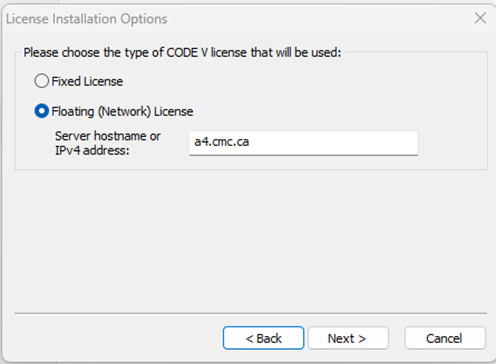
Figure 3: Code V License File Server Setup
Installing Light Tools
- Locate the Light Tools installation in the format of LightTools64_yyyymmFCS.zip.
- Extract the files from this folder.
- Double-click the installer version corresponding to your computer’s operating system. The installer has a file format of setup.exe.
The installer wizard appears. - Follow the default prompts.
The default program files installation location is shown in Figure 4.
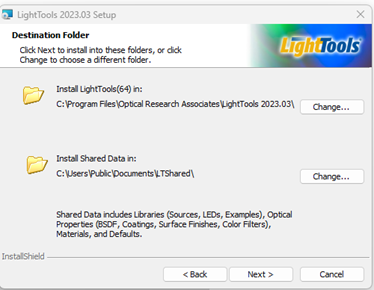
Figure 4: LightTools Default Locations
- When the dialogue box License Installation Options appears, ensure the box My License is for Synopsys Common Licensing is unchecked, as shown in Figure 5.
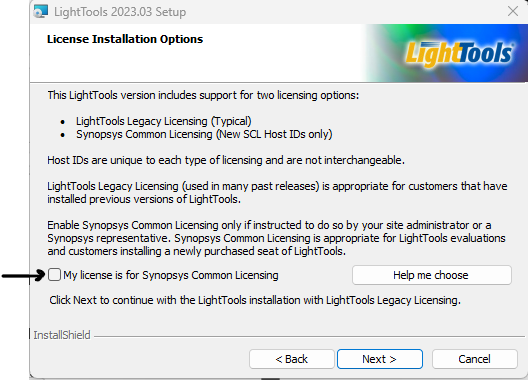
Figure 5: LightTools License Installation Options
- When the dialogue box License Type Setup appears, select Network/Client.
- When dialogue License Installation Options appears, check Floating License, and enter a4.cmc.ca as the Server Hostname, as shown in Figure 6.
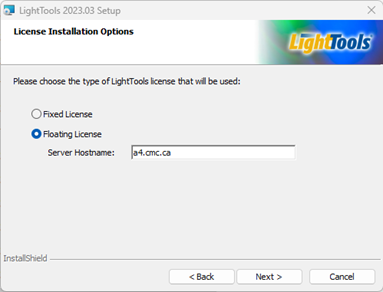
Figure 6: LightTools License File Server Setup
Running a Synopsys Optical Solutions Session
Sign in to the CADpass client, and check Synopsys CODE V / LightTools Software, as shown in Figure 1.
Running a Code V Session
From the Start menu of Windows, open the folder CODE V yyyy.mm CAD Suite, and launch the program CODE V yyyy.mm.
The default GUI window appears, as shown in Figure 7.
Note: You may access CODE V user manuals from the Start menu or from the same directory where you installed the software.
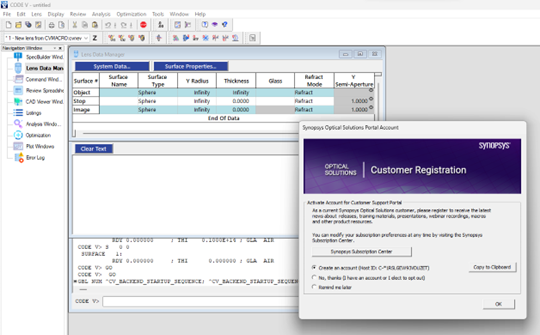
Figure 7: Default GIU Code V window
Running a Light Tools Session
From the Start menu of Windows, open the folder Light Tools (64) yyyy.mm, and then launch Light Tools (64) _yyyy_mm, as shown in Figure 8.
Note: You may access Light Tools (64)_yyyy_mm user manuals from the Start menu or from the same directory where you installed the software.
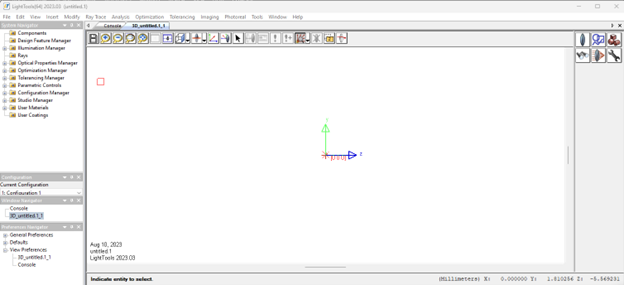
Figure 8: Default GUI LightTools Window
Helpful Resources
Synopsys website provides extensive application notes, webinars, and training materials:
Synopsys photonic solutions limit access to their resource in Supportàsolvenet for CMC users. If you need some resources or submit a case to Synopsys products, Contact us at https://www.cmc.ca/support/.