
CADpass client secure connection (will be referred to as CADpass client or CADpass in this document) is a utility provided by CMC Microsystems that creates a secure connection between client PCs, workstations, and computer sessions, and the CMC-managed infrastructure.
This quick start guide provides instructions for installing Cadence Sigrity X software on Microsoft Windows, using CMC CADpass to access shared licenses on the CMC License Management System (LMS). The procedure has been tested on a Windows 11, 64-bit system.
See more information about the Sigrity X Platform.
Prerequisites
- Professors, Research Supervisors, and their research teams must register with CMC at https://fabricinnovation.ca/member/.
- Professors and Research Supervisors can subscribe through the CMC subscription page at https://www.cmc.ca/subscriptions/.
- You must complete all required agreements for this software use, which may be obtained from CMC Technical Support.
- You must have administrator rights for the workstation on which you are installing this software.
- You must have a unique login name (Linux or Windows) that does not contain a blank space. A username such as “charlie brown” contains a space, while usernames such as “charlie.brown” or “charlie_brown” do not contain spaces.
The following are examples of unacceptable login names because they are not unique: “admin”, ”administrator”, ”root”, ”sysadm”, ”user”, ”owner”, ”student”, ”guest”, “temp”, and ”system”.
System Requirements
Software Requirements
See Cadence Computing Platform Support.
Hardware Requirements
The following is strongly recommended for running Sigrity products:
- 4.30 GHz processor with at least four cores;
- 64 GB RAM or higher;
- 500 GB free disk space SSD is recommended for the primary operating system (OS) and simulation working directory; and
- Dedicated graphics card with 1 GB video memory or higher.
Setting up CADpass Client for Use with Cadence Sigrity X
CADpass client is a CMC Microsystems’ license access client and is used by subscribers across Canada to connect to our secure license server(s).
-
- Follow the instructions in the quick start guide to download and install the CADpass client.
- Start the CADpass client and log in using your CMC Microsystems username and password.
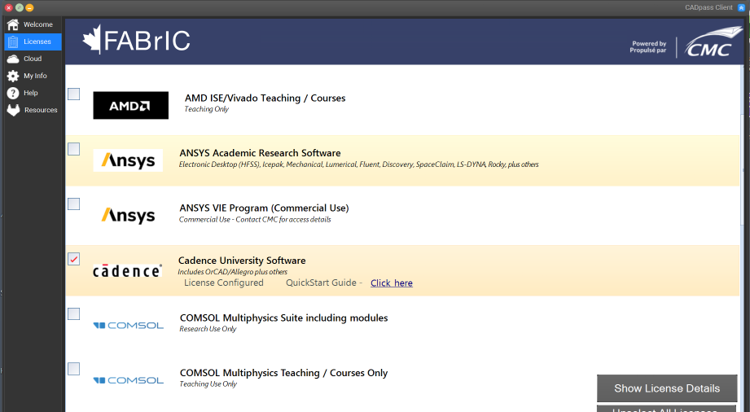
- When the CAD access window appears, double-click Cadence.
A red checkmark appears next to the entry, as shown in Figure 1. Leave this checked while you are using the software.
Obtaining the Software
Download the installation files from the CMC Microsystems website: https://www.cmc.ca/tools/.
Installing the Software
The Sigrity X software is available from the CMC Microsystems website.
- In the temporary directory containing the Base_SIG*_wint_1of2 and Base_SIG*_wint_2of2 files, unzip and launch the executable.
The introductory Cadence installation dialogue is displayed, as shown in Figure 2.
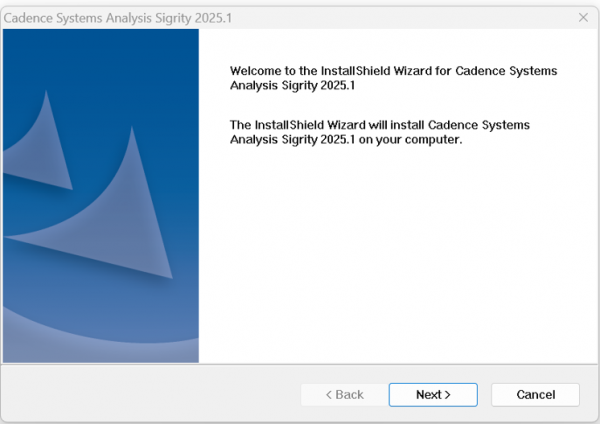
- Click Next.
The dialogue License Agreement appears, as shown in Figure 3.
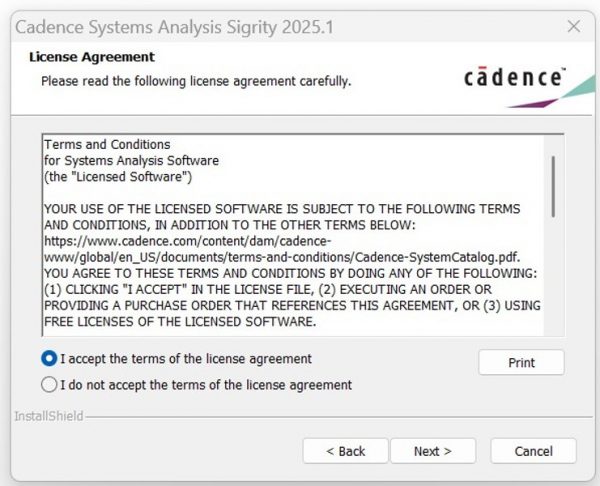
- Review the software license and maintenance agreement, and check I accept the terms of the license agreement.
- Click Next.
The dialogue Setup Type is displayed, as shown in Figure 4.
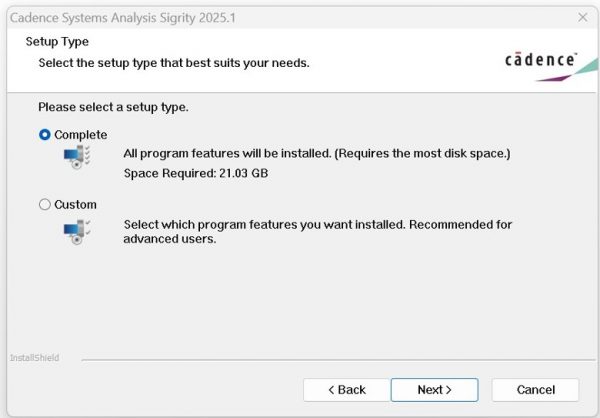
- Check Complete and click Next.
The dialogue Choose Destination Location appears, as shown in Figure 5.
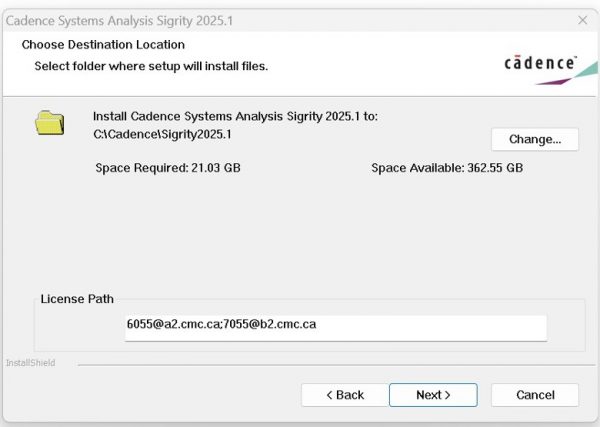
- If you wish to change the default installation location, click Change … and browse to your destination directory.
- Enter the port and server information in the box License Path, as shown in Figure 5:
License Path: [email protected]; [email protected] - Click Next.
The Start Copying Files dialogue appears. - If you are satisfied with your settings, click Install to continue.
The dialogue Setup Status appears with the progress displayed, as shown in Figure 6.
When the installation is complete, the dialogue Setup Complete appears.
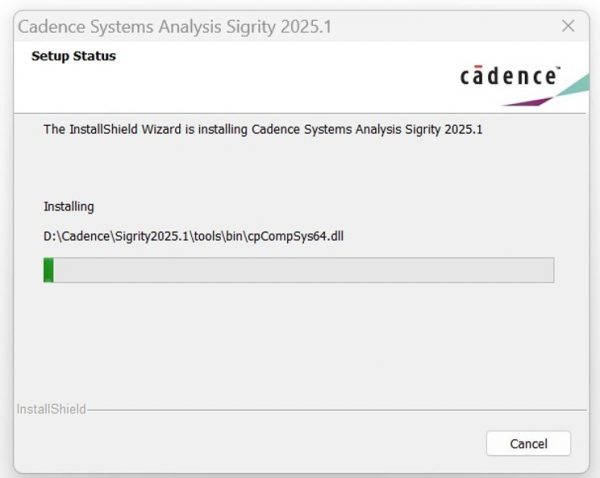
- Click Finish to complete the installation.
Setting up Cadence Sigrity X License Access
Before starting Sigrity X, the CADpass client must be running.
- Start the CADpass client and log into your account using your CMC Microsystems Username and Password.
- In the CADpass client window, select the Cadence license icon, as shown in Figure 1.
- On your workstation, go to the Start menu | Cadence Systems Analysis Sigrity.
- Select a tool in the submenu.
The module should start as expected. - In this example, choose the Clarity 3D Workbench menu entry.
The dialogue Choose License Suites appears, as shown in Figure 7.
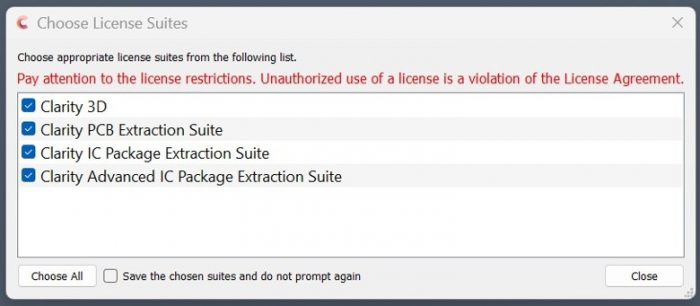
- Check the feature(s) you want to use and click Close.
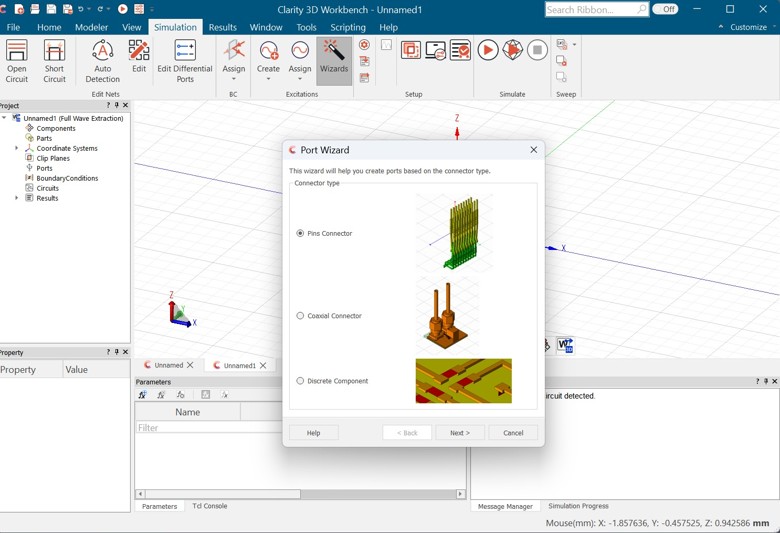
Clarity 3D Workbench starts, as shown in Figure 8.
Troubleshooting
If the tool fails to install properly, contact CMC Support for help with diagnosing the problem at https://www.cmc.ca/support/.
Additional Support Resources
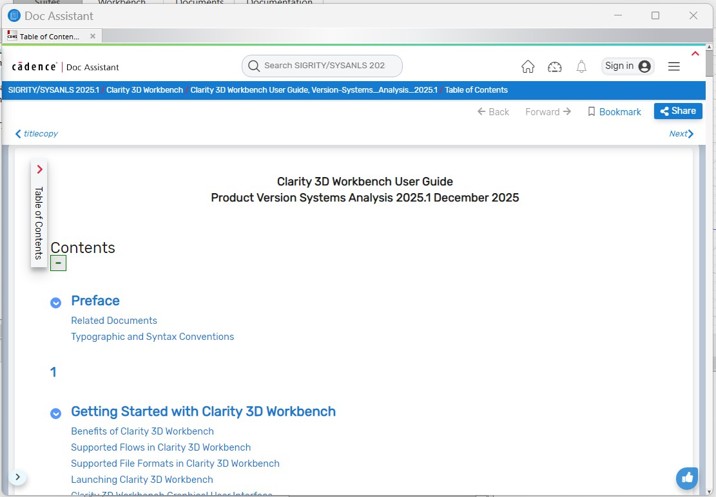
Manuals and examples are bundled with Cadence software and will open when selected from the Help menu, as shown in Figure 9.
To set up a Cadence academic online training account, contact [email protected].