Quick Start Guide: Installing Optiwave for Academic via CADpass Client Secure Connection
CQSG-0119
V1.0
Licensing Requirements or Restrictions
Usage terms and conditions apply to this software. For more information, refer to Licensing Requirements or Restrictions on the associated product page:
CADpass client secure connection (will be referred to as CADpass client or CADpass in this document) is a utility provided by CMC Microsystems that creates a secure connection between client PCs, workstations, and computer sessions, and the CMC-managed infrastructure.
This quick start guide provides instructions for installing Optiwave photonic simulation tools on a Windows 11 system using CMC Microsystem’s CADpass Client to access shared licenses on the CMC License Management System (LMS).
You must complete all required agreements for this software use, which may be obtained from CMC Technical Support.
You must have administrator rights for the workstation on which you are installing this software.
You must have a unique login name (Linux or Windows) that does not contain a blank space. A username such as “charlie brown” contains a space, while usernames such as “charlie.brown” or “charlie_brown” do not contain spaces.
The following are examples of unacceptable login names because they are not unique: “admin”, ”administrator”, ”root”, ”sysadm”, ”user”, ”owner”, ”student”, ”guest”, “temp”, and ”system”.
A PDF reader is required to open some of the tutorials and manuals included with the Optiwave CAD program.
A file extraction program such as 7-Zip or WinZip to extract the downloaded program installation files from .zip format.
64-bit, Microsoft Windows 11
Setting up CADpass client for use with Optiwave
CADpass client is a CMC Microsystems license access client and is used by subscribers across Canada to connect to our secure license server(s).
Follow the instructions in the quick start guide to download and install CADpass client.
Start CADpass client and then log in using your CMC Microsystems Username and Password.
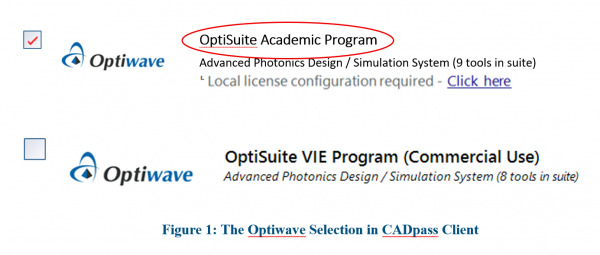
When the CAD access window appears, double-click Optiwave (circled in Figure 1). A red checkmark appears next to the entry, as shown in Figure 1. Leave this checked while you are using the software.
Figure 1: The Optiwave Selection in CADpass Client
Locate the tool Optiwave for Academic and click Download from CMC.
From the list of available Optiwave tools, choose the Optiwave OptiSuite Toolset.
Follow the prompt to download a PDF file that lists URLs and passwords for all the products in suite.
This guide uses the OptiOmega tools as an example. You can follow the same steps for the other products.
Installing the Software
Double-click the file OptiOmega_xx(version). exe. The installation wizard Setup – OptiOmega starts.
Click Next to accept the defaults.
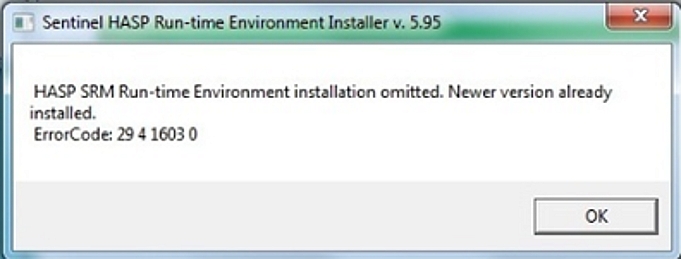
Note: If you have previously installed software that uses the Sentinel license management tool, you may be notified that the Sentinel HASP SRM Run-time Environment Installer was omitted, as shown in Figure 2. Click OK to acknowledge the message.
Figure 2: Redundant Installer Program Notification
To complete the installation, follow the setup wizard instructions.
Setting up OptiOmega License Access
Optiwave tools use the Sentinel Software as a Service (SaaS) Pass utility to manage access to session-based shared license keys. To access a session license key for your OptiOmega session, you must configure this utility so that your computer knows where to locate the key.
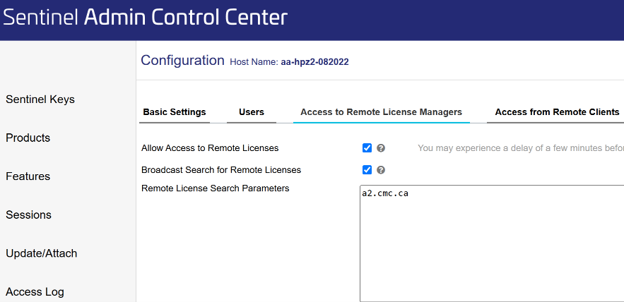
Check the box Allow Access to Remote Licenses, as shown in Figure 3.
In the field Remote License Search Parameters, enter a2.cmc.ca as shown in Figure 3.
Click Submit.
Once the address for the OptiOmega license key for your computer is correctly set and submitted, you may close your browser. Your computer does not need to be connected to the Sentinel utility during your OptiOmega session. However, you may choose to leave the browser open so that you can monitor your access to a CMC session license key as required later in the procedure.
Note: You do not need to repeat steps 1-5 above, for subsequent OptiOmega sessions.
Since the Sentinel utility may be used to manage concurrent software licenses for multiple CAD tools on your computer, you may be required to input several license keys into the remote license manager window, as shown in Figure 3. Contact [email protected] for further details.
Running Optiwave
To start CADpass Client, click the icon CADpass on your desktop, and double-click the Optiwave entry, as shown in Figure 1.
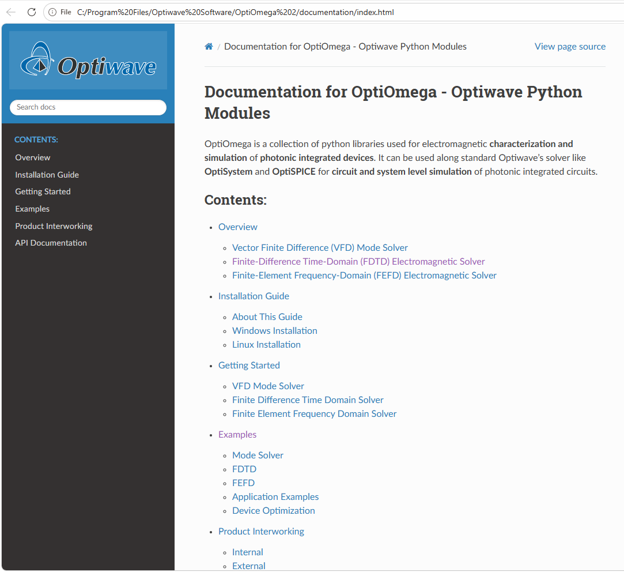
After the installation, documentation and examples can be found at C:\Program Files\OptiwaveSoftware\OptiOmega x\documentation\index.html, where “x” is the version number. An example is shown in Figure 4 .
Figure 4: Documentation and Getting started OptiOmega
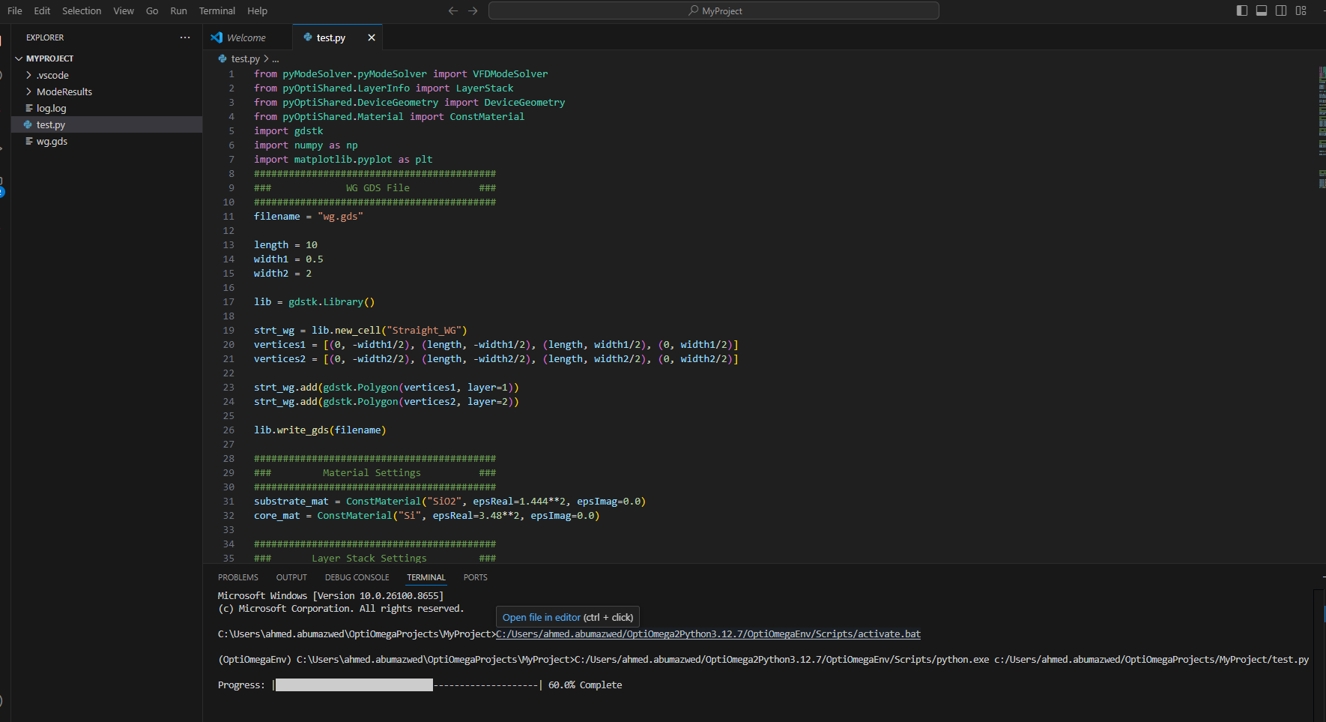
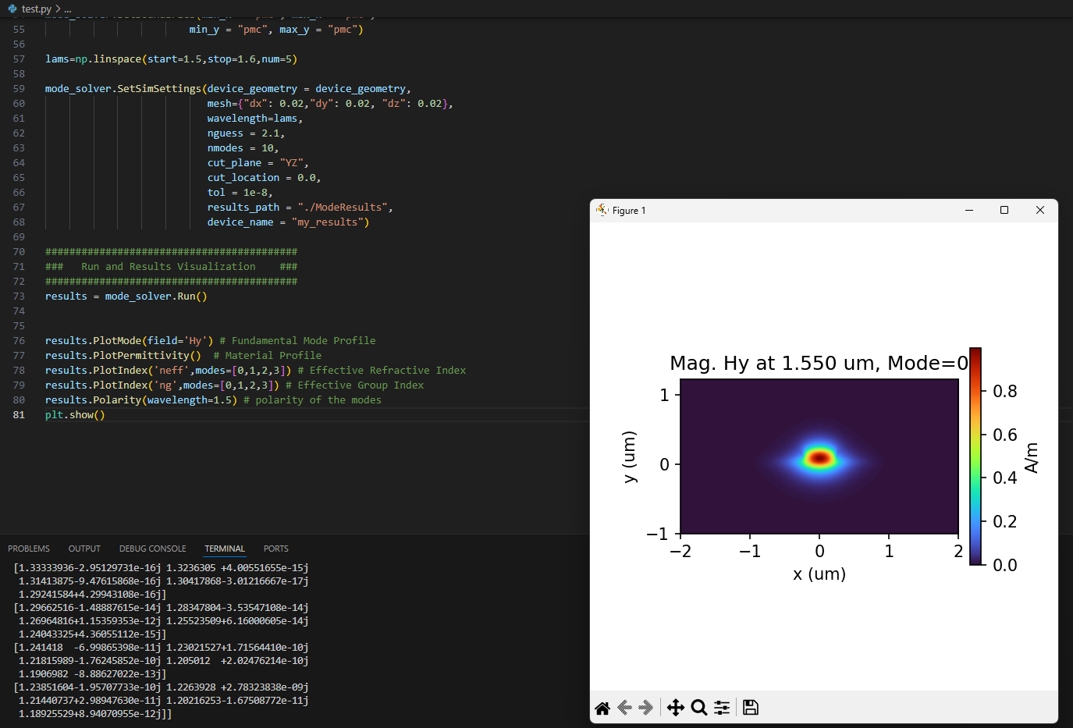
Figure 5 and Figure 6 show an example run using Visual Studio Code.
Figure 5: Example Code for Running OptiOmega, Part 1 (Click to enlarge)
Figure 6: Example Code for Running OptiOmega, Part 2 (Click to enlarge)
Helpful Resources
Tutorial documents: C:\Program Files\OptiwaveSoftware\OptiOmega x\documentation\index.html, where “x” is the version number.