CADpass client secure connection (will be referred to as CADpass client or CADpass in this document) is a utility provided by CMC Microsystems that creates a secure connection between client PCs, workstations, and computer sessions, and the CMC-managed infrastructure.
This quick start guide provides instructions for installing the latest HyperLynx CAD suite on a Windows 11, 64-bit system, using CMC Microsystems’ CADpass client to access shared licenses on the License Management System (LMS).
Prerequisites
- Professors, Research Supervisors, and their research teams must register with CMC at https://fabricinnovation.ca/member/.
- Professors and Research Supervisors can subscribe through the CMC subscription page at https://www.cmc.ca/subscriptions/.
- You must complete all required agreements for this software use, which may be obtained from CMC Technical Support.
- You must have administrator rights for the workstation on which you are installing this software.
- You must have a unique login name (Linux or Windows) that does not contain a blank space. A username such as “charlie brown” contains a space, while usernames such as “charlie.brown” or “charlie_brown” do not contain spaces.
The following are examples of unacceptable login names because they are not unique: “admin”, ”administrator”, ”root”, ”sysadm”, ”user”, ”owner”, ”student”, ”guest”, “temp”, and ”system”.
System Requirements
Recommendations about hardware and operating systems are listed on the Siemens EDA website at: https://resources.sw.siemens.com/en-US/fact-sheet-pcb-and-ic-packaging-system-requirements
Setting up CADpass client for use with HyperLynx
CADpass client is a CMC Microsystems’ license access client and is used by subscribers across Canada to connect to our secure license server(s).
- Follow the instructions in the quick start guide to download and install CADpass client.
- Start CADpass client and then log in using your CMC Microsystems Username and Password.
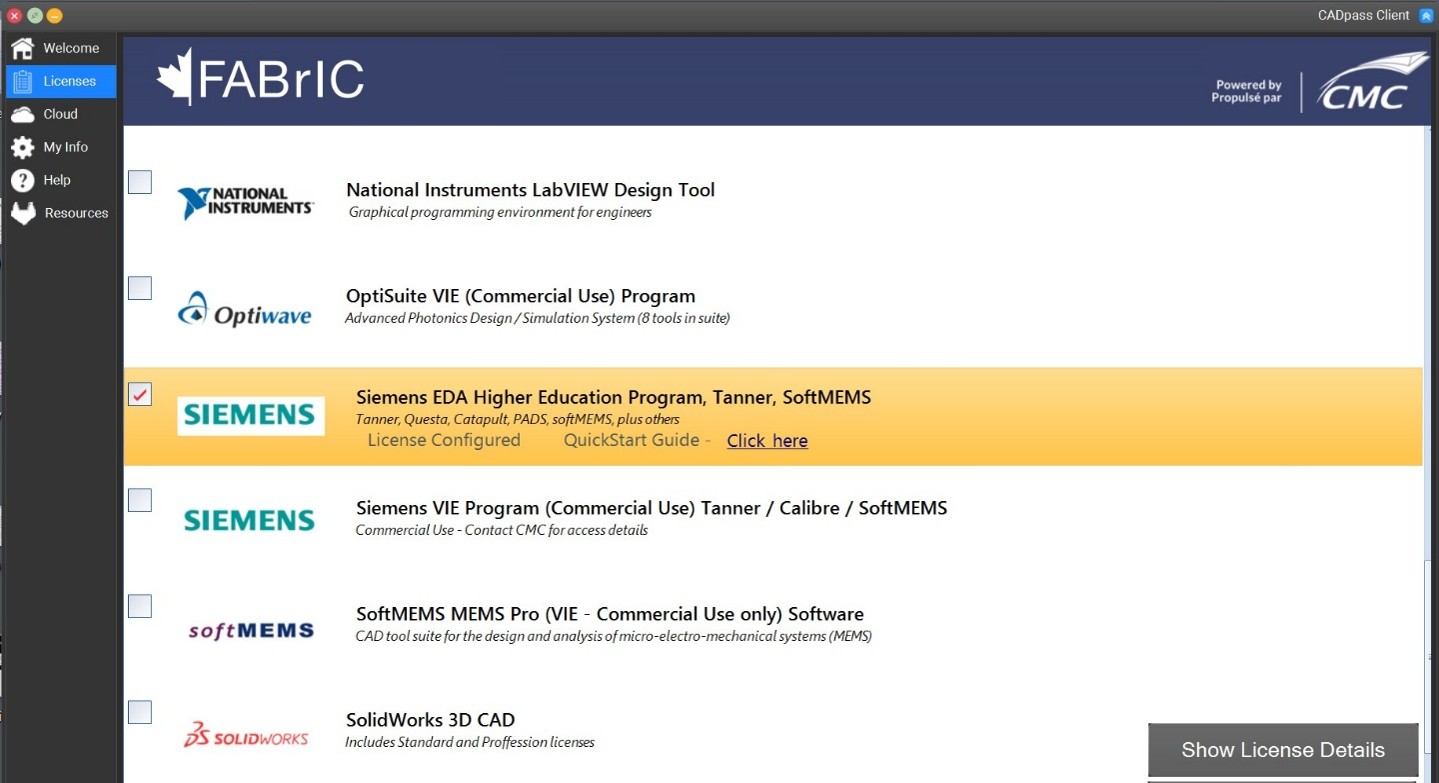
- When the CAD access window appears, double-click Siemens EDA Higher Education Program.
A red checkmark appears next to the entry, as shown in Figure 1. Leave this checked while you are using the software. You must also have our Appgate utility running and connecting to our licence servers to use this software.
Obtaining the Software
To download the archive, go to https://www.cmc.ca/tools/ and select the download package.
Installing the Software
- Unzip the archive and expand its contents to a temporary folder.
- Open the temporary folder and launch the installer application setup.exe.
The Siemens Install window is displayed. - Click Install Products.
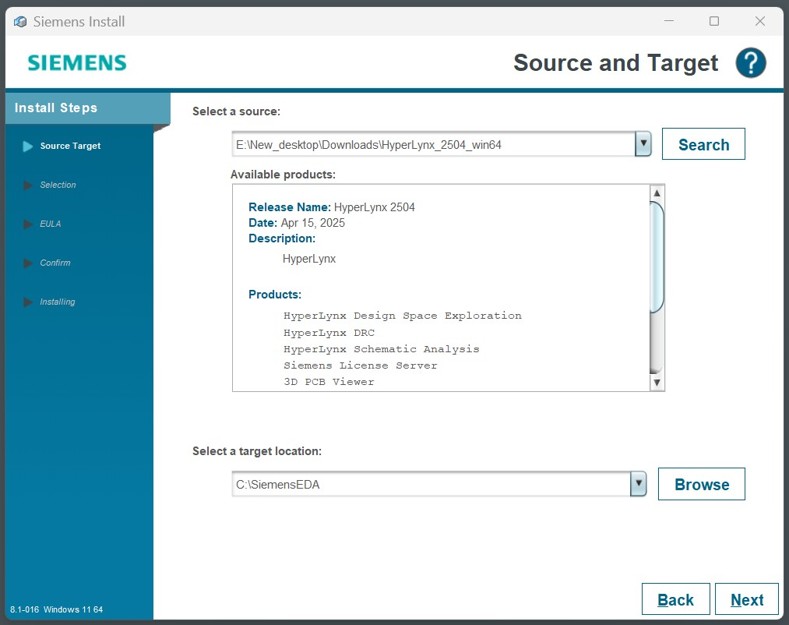
The Siemens Source and Target window is displayed, as shown in Figure 2.
- Click Next.
The Product Selection window opens.
- Click Next.
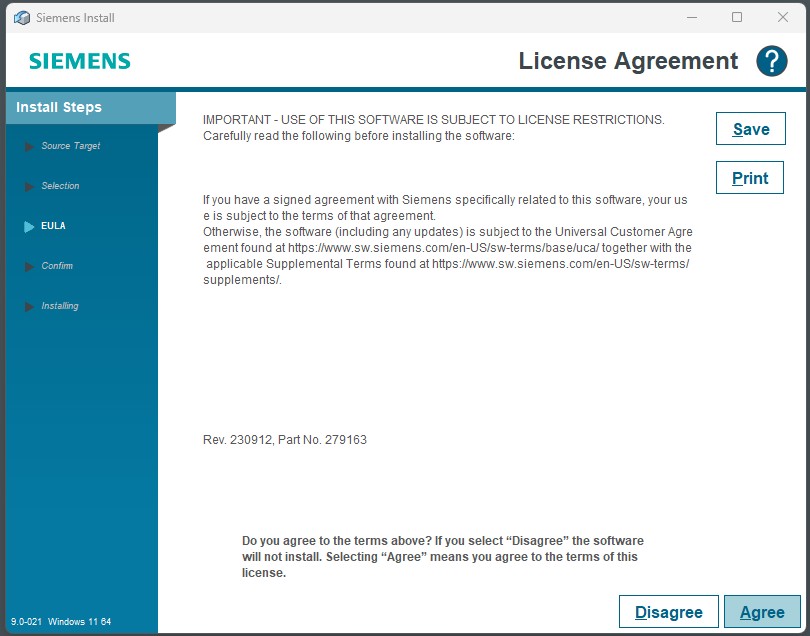
The License Agreement window is displayed, as shown in Figure 3.
- Click Agree to continue.
The Confirm Selections window opens, as shown in Figure 4.
- Click Install.
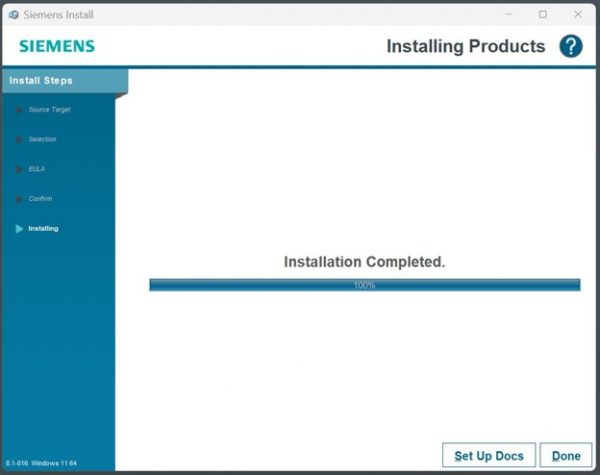
The Installing Products window appears while dependencies are checked/updated, and the main programs are installed (Figure 5).
When the software has finished installing, a message appears as shown in Figure 6.
- Click Done.
The Siemens Install window is displayed. - Click Exit to complete the setup.
At this point, you are ready to use the software. Log into CADpass client, select the Siemens EDA Higher Education Program licence entry, and start HyperLynx.
Installing Siemens Documentation Server (Optional)
If you wish to obtain a copy of the Siemens EDA HyperLynx manuals, follow these steps:
- Download both the HelpServer executable and the docs-hyperlynx file from the HyperLynx archive on the CMC website (see https://www.cmc.ca/tools/).
- Click the HelpServer executable to install it.
- When the HelpServer installation completes, click the docs-hyperlynx executable.
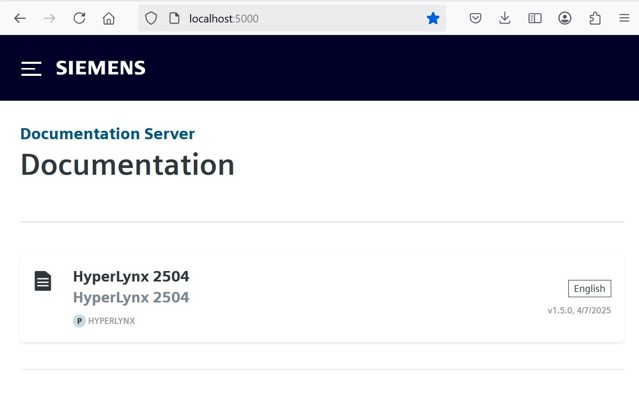
It will proceed to add the HyperLynx tutorials and manuals to your workstation. These documents can be searched and opened in a web browser, as shown in Figure 7. You may also open the Help Server in your browser by using the localhost address, which is 5000 in the example shown in Figure 7.
Troubleshooting
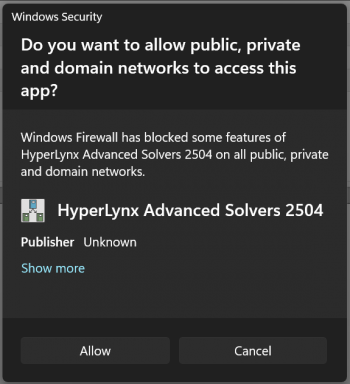
Sometimes firewalls or anti-virus programs block CADpass or installed CAD programs from reaching CMC Microsystems’ license server(s), as shown in Figure 8. If you cannot run this software, contact CMC Technical Support for assistance.
Other Resources
More HyperLynx information can be found at https://eda.sw.siemens.com/en-US/pcb/hyperlynx/.