

CADpass client secure connection (will be referred to as CADpass client or CADpass in this document) is a utility provided by CMC Microsystems that creates a secure connection between client PCs, workstations, and computer sessions, and the CMC-managed infrastructure.
This quick start guide provides instructions for installing Solid Edge on a Windows 11, 64-bit system, using CMC Microsystems’ CADpass client to access shared licences on the License Management System (LMS).
Prerequisites
- Professors, Research Supervisors, and their research teams must register with CMC at https://fabricinnovation.ca/member/.
- Professors and Research Supervisors can subscribe through the CMC subscription page at https://www.cmc.ca/subscriptions/.
- You must complete all required agreements for this software use, which may be obtained from CMC Technical Support.
- You must have administrator rights for the workstation on which you are installing this software.
- You must have a unique login name (Linux or Windows) that does not contain a blank space. A username such as “charlie brown” contains a space, while usernames such as “charlie.brown” or “charlie_brown” do not contain spaces.
The following are examples of unacceptable login names because they are not unique: “admin”, ”administrator”, ”root”, ”sysadm”, ”user”, ”owner”, ”student”, ”guest”, “temp”, and ”system”.
System Requirements
Recommendations about hardware and operating systems are listed on the Siemens EDA website at:
https://solidedge.siemens.com/en/resources/system-requirements/.
Setting up CADpass client for use with Solid Edge
CADpass client is a CMC Microsystems license access client and is used by subscribers across Canada to connect to our secure license server(s).
- Follow the instructions in the quick start guide to download and install CADpass client.
- Start CADpass client and then log in using your CMC Microsystems Username and Password.
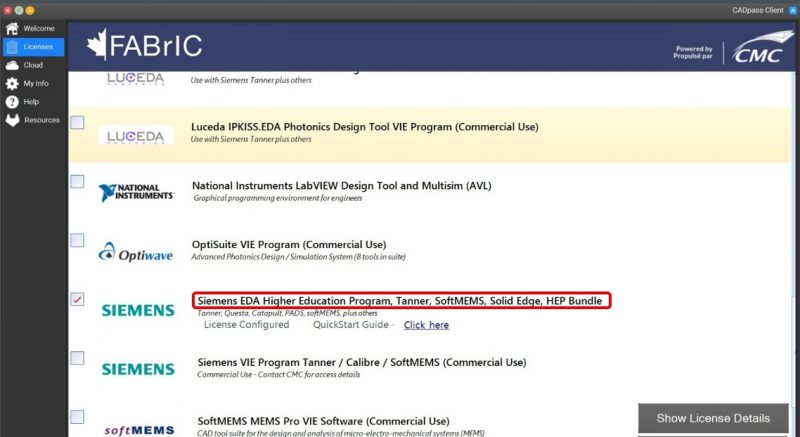
- When the CAD access window appears, click the Siemens EDA entry outlined in red in Figure 1.
A red checkmark appears next to the entry, as shown in Figure 1. Leave this checked while you are using the software. You must also have our Appgate utility running and connecting to our licence servers to use this software.
Obtaining the Software
To download the archive, go to https://www.cmc.ca/tools/ and select the download archive.
Installing the Software
- From your temporary directory, launch the Solid Edge application setup.exe.
The main Solid Edge installation window appears, as shown in Figure 2.
- From your temporary directory, launch the Solid Edge application setup.exe.
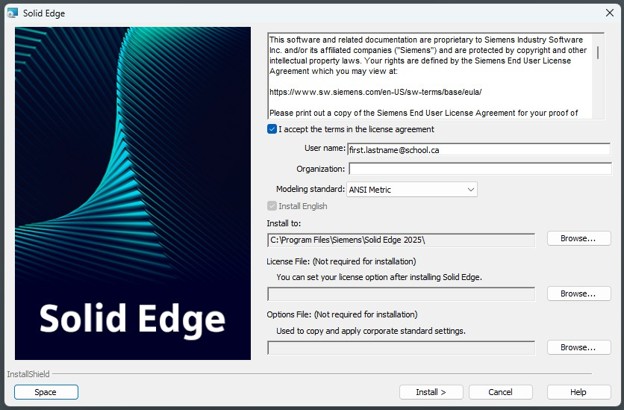
- Review the terms of the licence agreement and check I accept the terms….
- If you wish to change the installation directory, enter the directory path in Install to:.
- Leave the boxes License File: and Options File: blank.
- Click Install>.
When the installation ends, the window InstallShield Wizard Completed appears, as shown in Figure 3.
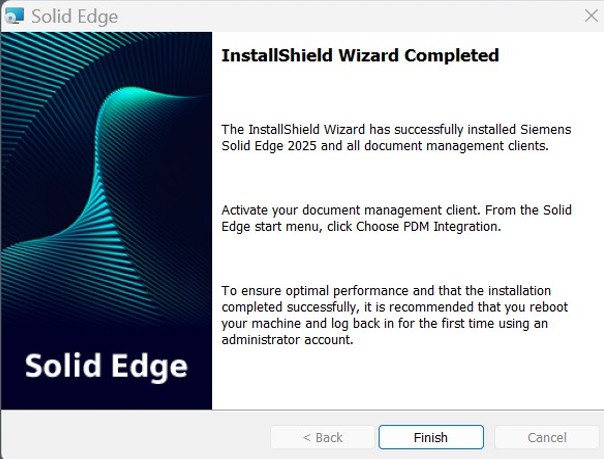
- Click Finish to close the window.
Running Solid Edge
- To test your installation, ensure that your Appgate tunnel is active and connecting to our licence servers.
- From your Windows Start menu, run Solid Edge.
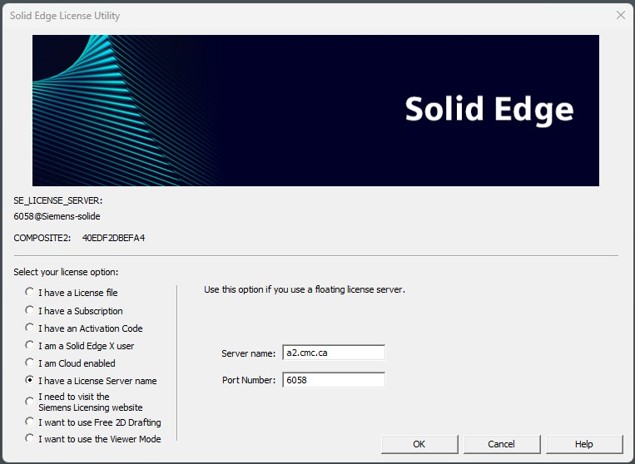
- If you are asked to open the Solid Edge License Utility, check I have a License Server name, and enter the following values (see Figure 4):
- Server name: a2.cmc.ca
- Port Number: 6058
Note: Always check CADpass Licensing Information for the latest port number and license server name.
- Click OK.
Solid Edge should start to run.
Removing Siemens Connector Software
Siemens EDA Solid Edge 2024 and later includes a feature called Connector, which enables Teamcenter Share, a remote cloud file storage link for projects. This Connector feature is installed by default.
CMC Microsystems CAD/IT staff does not have a subscription for this remote cloud storage. To disable Teamcenter Share in Solid Edge, follow these steps:
- In Windows Programs and Features, open Uninstall or change a program and uninstall Siemens Connector.
- Once you have uninstalled Siemens Connector, start Solid Edge and open Solid Edge Settings | Options.
- Navigate to the Manage page, uncheck Use Solid Edge data management, and then click Apply.
This step disables the sign-in request when Solid Edge starts.
Troubleshooting Your Installation
If you are struggling with your installation or find that you cannot connect to our licence server, open a support case with us and include information that will help us understand the issue:
- CAD tool name and release,
- your operating system,
- hardware specifications such as GPU type and/or RAM,
- description of your problem, and
- any screen captures of error messages that are produced.
Other References
Solid Edge Community: https://community.sw.siemens.com/s/topic/0TO4O000000MihiWAC/solid-edge