
CADpass client secure connection (will be referred to as CADpass client or CADpass in this document) is a utility provided by CMC Microsystems that creates a secure connection between client PCs, workstations, and computer sessions, and the CMC-managed infrastructure.
The following information will help you download, install, set up and use Thermo Fisher Scientific’s Avizo and/or Amira with the CMC License Management System. These instructions are for a Windows 11, 64-bit operating system.
Prerequisites
- Professors, Research Supervisors, and their research teams must register with CMC at https://fabricinnovation.ca/member/.
- Professors and Research Supervisors can subscribe through the CMC subscription page at https://www.cmc.ca/subscriptions/.
- You must complete all required agreements for this software use, which may be obtained from CMC Technical Support.
- You must have administrator rights for the workstation on which you are installing this software.
- You must have a unique login name (Linux or Windows) that does not contain a blank space. A username such as “charlie brown” contains a space, while usernames such as “charlie.brown” or “charlie_brown” do not contain spaces.
The following are examples of unacceptable login names because they are not unique: “admin”, ”administrator”, ”root”, ”sysadm”, ”user”, ”owner”, ”student”, ”guest”, “temp”, and ”system”.
System Requirements
Software and hardware requirements are listed on the Thermo Fisher Scientific website.
Setting up CADpass client for Use with Avizo and Amira
CADpass client is a CMC Microsystems’ license access client and is used by subscribers across Canada to connect to our secure license server(s).
- Follow the instructions in the quick start guide to download and install CADpass client.
- Start CADpass client and then log in using your CMC Microsystems Username and Password.
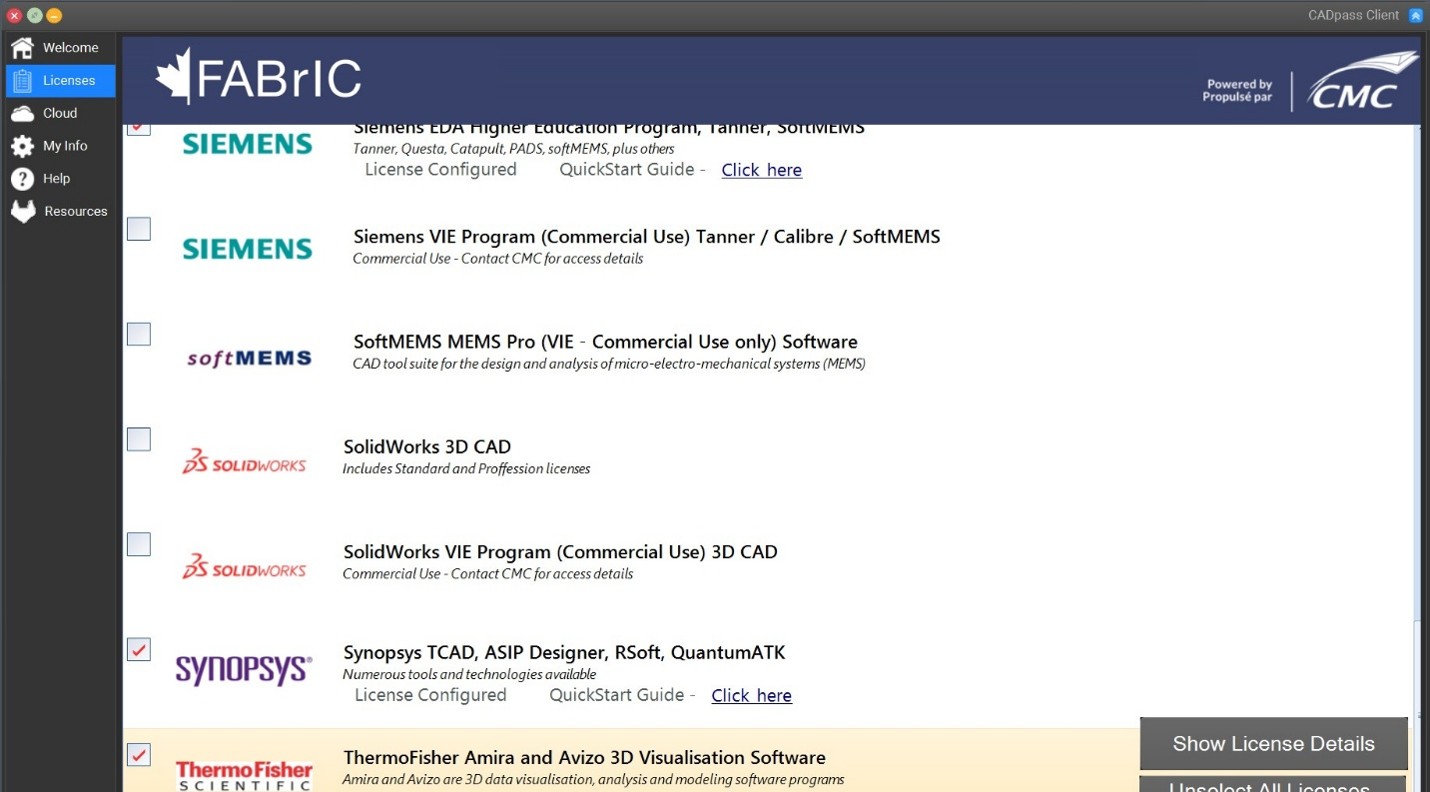
- When the CAD access window appears, double-click Thermo Fisher Scientific.
A red checkmark appears next to the entry, as shown in Figure 1. Leave this checked while you are using the software.
Obtaining the Software
- You will find links to the latest Amira and Avizo releases on the vendor’s website (registration required).
- For the Thermo Fisher License Manager download, go to https://tlm-portal.com/.
- You will need the latest version of Windows to complete your installation.
Installing the Software
- Download the Amira and Avizo executable file and the Thermo Fisher License Manager to a local temporary directory.
- To start the installation, double-click the Avizo and Amira executable file.
- From the dialogue Welcome to the Amira and Avizo Software Setup Wizard, click Next.
- In the License Agreement window, read the Software End-User License Agreement (EULA). If you agree, choose I accept…, and then click Next. Otherwise, end the installation session.
- In the Information window, read the specific Avizo and Amira software information, then click Next to continue.
- In the Select Destination Location window, choose your desired directory location to install the software, then click Next.
It is recommended to keep the default path. - In the Select Components dialogue, choose which components to install. This is optional. Click Next to continue.
- In the Select Applications to Setup dialogue, choose your applications to set up. Click Next to continue.
- In the Select File Associations dialogue, choose which application opens which file type. Click Next to continue.
- In the Select Desktop Shortcuts dialogue, choose to have desktop icons added to your computer. Click Next to continue.
- The Installing… dialogue appears and begins your installation.
- Once the installation completes, a License Manager License Agreement dialogue opens. Review this text and click I Agree to continue, or cancel the installation and contact [email protected] for more information about its terms.
- In the Choose Install Location dialogue, select a directory for this Manager and click Install.
- Once this installation ends, the Completing Thermo Scientific License Manager Setup window is displayed. Click Finish to end this part of your installation.
Setting Up Amira and Avizo License Access
The following steps describe how to connect your Amira and Avizo software to the CMC License Management Server (LMS).
To set up your license:
- Click the Thermo Scientific License Manager Setup executable to run the program.
- In the License Agreement window, review the license terms and click I Agree to proceed.
- In the Choose Install Location, pick a directory and click Install.
- Click Finish to close the installer and run the License Manager.
Setting Up Amira and Avizo License Access
- Make sure to start the CADpass client as described in the section Setting Up CADpass client for use with Avizo and Amira.
- In the Thermo Scientific License Manager window, select Add License(s). Choose the License server.
- For License server, enter a2.cmc.ca:50022 and click Save. See Figure 2 for an example of a successful connection.
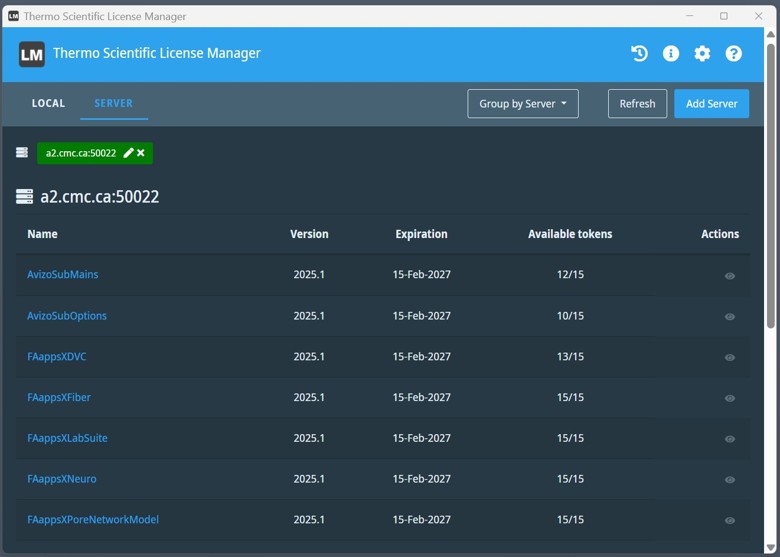
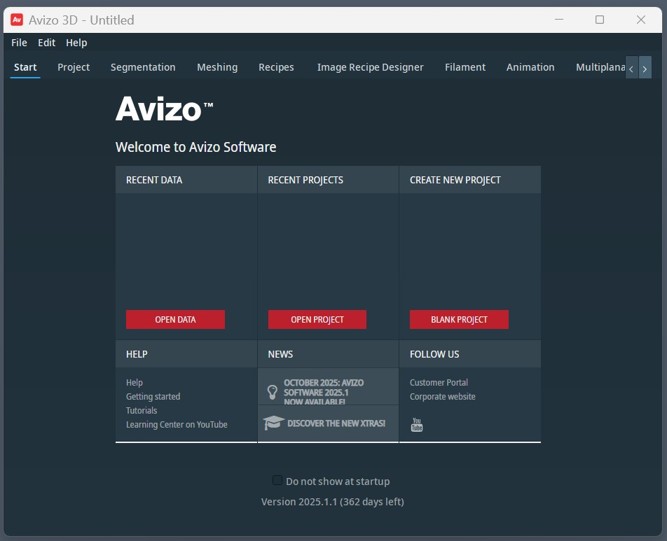
The License Manager will now allow you to run the software. See Figure 3 for the main window of Avizo.
More information about Avizo and Amira is available on the Thermo Fisher Scientific website:
Other Resources
Thermo Fisher Scientific provides resources to help learn to use their software. Read about applications, visit the company’s Learning Center, and browse software training via these links: