Quick Start Guide: Installing Cadence Fine Turbo via CADpass Client Secure Connection

Licensing Requirements or Restrictions
Usage terms and conditions apply to this software. For more information, refer to Licensing Requirements or Restrictions on the associated product page:

Table of Contents

CADpass client secure connection (will be referred to as CADpass client or CADpass in this document) is a utility provided by CMC Microsystems that creates a secure connection between client PCs, workstations, and computer sessions, and the CMC-managed infrastructure.

This quick start guide provides instructions for installing Cadence Fine Turbo Computational Fluid Dynamics (CFD) software on Microsoft Windows, using CMC CADpass to access shared licenses on the CMC License Management System (LMS). The procedure has been tested on a Windows 11, 64-bit system.

Prerequisites

  • Professors, Research Supervisors, and their research teams must register with CMC at https://fabricinnovation.ca/member/.
  • Professors and Research Supervisors can subscribe through the CMC subscription page at https://www.cmc.ca/subscriptions/.
  • You must complete all required agreements for this software use, which may be obtained from CMC Technical Support.
  • You must have administrator rights for the workstation on which you are installing this software.
  • You must have a unique login name (Linux or Windows) that does not contain a blank space. A username such as “charlie brown” contains a space, while usernames such as “charlie.brown” or “charlie_brown” do not contain spaces.

    The following are examples of unacceptable login names because they are not unique: “admin”, ”administrator”, ”root”, ”sysadm”, ”user”, ”owner”, ”student”, ”guest”, “temp”, and ”system”.
System Requirements

Software Requirements

See the Cadence webpage Computing Platform Support.

Hardware Requirements

To install and run Fine Turbo version 2025.2, the following are recommended:

  • Disk space: 10 GB disk space (512 GB recommended)
  • 2 GB RAM per million cells for the flow solver
  • OpenGL-compatible monitor with at least 1920Ă—1080 pixel resolution, up to 4K

Setting up CADpass Client for Use with Cadence Fine Turbo

  1. Follow the instructions in the quick start guide to download and install the CADpass client.
  2. Start the CADpass client and log in using your CMC Microsystems username and password.
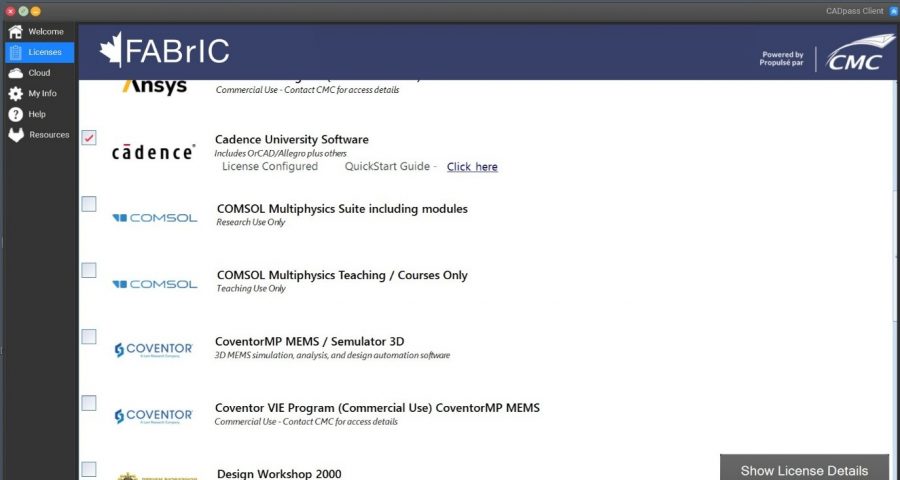
  3. When the CAD access window appears, double-click Cadence.
    A red checkmark appears next to the entry, as shown in Figure 1. Leave this checked while you are using the software.
CQSG-0110-fig1
Figure 1: A Red Check Mark Next to the Cadence Entry Indicates a Request for a License

Obtaining the Software

Download the Fine Turbo installation archive from the CMC Microsystems website: https://www.cmc.ca/tools/. Unzip the archive file Base_FINETURBO* to a temporary directory. It will contain an installation executable.

Installing the Software

The Fine Turbo software is an installation archive available from the CMC Microsystems website.

  1. In the temporary directory, locate the file Base_FINETURBO* and click it to start the installation.
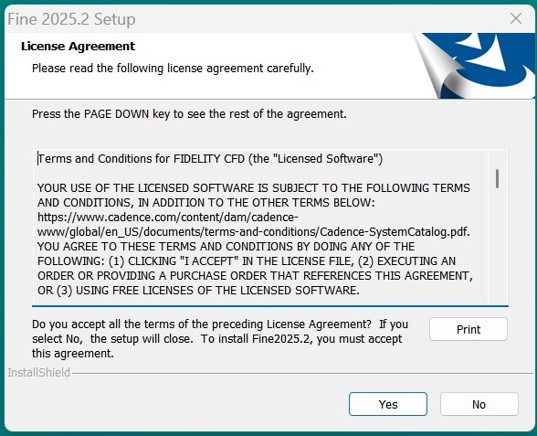
    The dialogue License Agreement appears, as shown in Figure 2.
Figure 2: The Fine Turbo License Agreement
  1. Read through the agreement, and click Yes to continue.

    Note: If you are unsure of your obligations with respect to this software and its license terms and conditions, contact [email protected] to discuss your concerns.

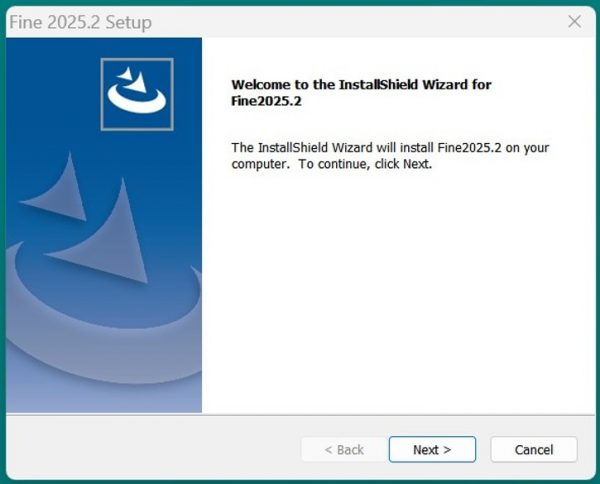
  2. The dialogue Welcome to the InstallShield Wizard appears, as shown in Figure 3.
CQSG-0110-fig3
Figure 3: The Welcome to the InstallShield Wizard
  1. Click Next.
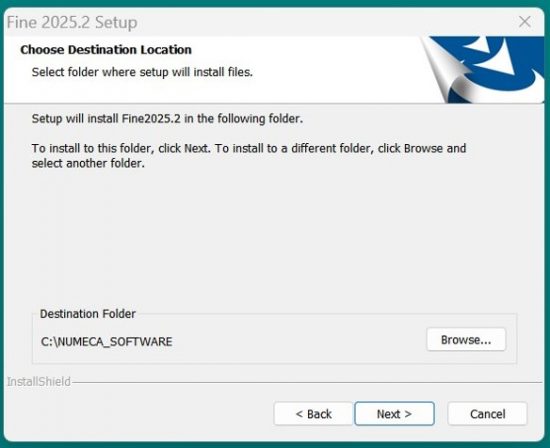
    The dialogue Choose Destination Location appears, as shown in Figure 4.
CQSG-0110-fig4
Figure 4: The Dialogue to Choose Destination Location
  1. Enter or browse to your installation directory, and click Next.
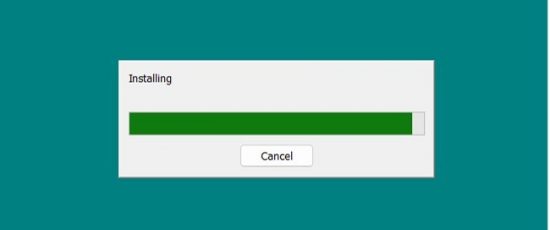
    The dialogue Installing appears with the progress of the installation, as shown in Figure 5.
CQSG-0110-fig5
Figure 5: Installation Progress

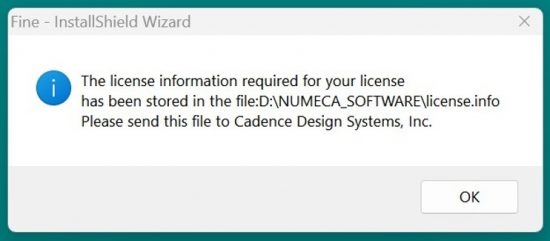
When the installation has completed, a License Information dialogue appears, as shown in Figure 6.

CQSG-0110-fig6
Figure 6: The License Information File Location
  1. Click OK to close this dialogue.
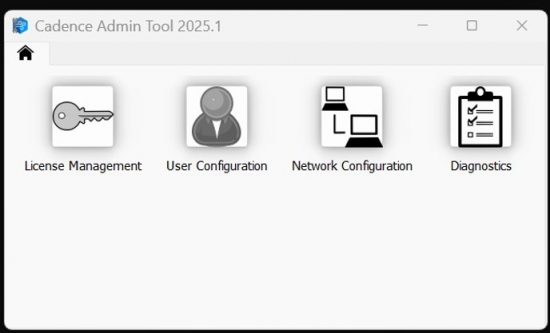
    The Cadence Admin Tool GUI appears, as shown in Figure 7.
CQSG-0110-fig7
Figure 7: Cadence Admin Tool GUI
  1. Click on the License Management key icon.
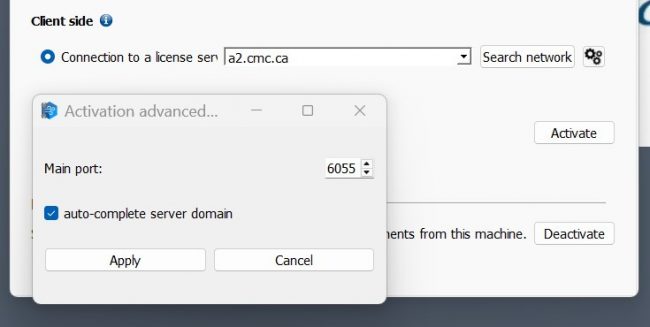
    The License Management GUI appears, as shown in Figure 8.
CQSG-0110-fig8
Figure 8: The License Management GUI
  1. Under the Product (de)activation tab, select Client side.
  2. In the field Connection to a license server, select server address a2.cmc.ca, and then 6055 as the Main port number in the pop-up, as shown in Figure 8.
  3. Click Apply to close the port selector, and then click Activate.
    A pop-up appears, asking if you want to proceed with these settings.
  4. Click Yes.
    The dialogue InstallShield Wizard Complete appears.
  5. Close all your other programs that are running at this point and save your files.
  6. Choose Yes, I want to restart my computer now.
  7. Click Finish to complete this installation.

Setting up Cadence Fine Turbo Licence Access

Before starting Fine Turbo, the CADpass client must be running.

  1. Start the CADpass client and log into your account using your CMC Microsystems username and password.
  2. In the CADpass client window, select the Cadence licence icon, as shown in Figure 1. Keep the Appgate client up and connected when using the software to enable license server access.
  3. On your workstation, from the Windows Start menu, select Numeca software | Turbo.
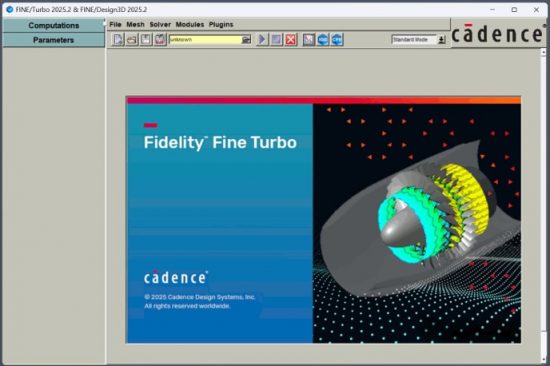
    The software starts, and the Fine Turbo main window appears, as shown in Figure 9.
CQSG-0110-fig9
Figure 9: The Cadence Fine Turbo Main Window

Troubleshooting

If the tool fails to install properly, contact CMC Support for help with diagnosing the problem.

Additional Support Resources

The following suggestions may be helpful for beginners:

  • In addition to this installer, an archive containing Fine Turbo tutorials and demonstration cases is available from the CMC CAD download webpage.
  • To set up a Cadence academic online training account through which to take CFD courses, contact [email protected].
Does your research benefit from products and services provided by CMC Microsystems?
Scroll to Top
Skip to content