Quick Start Guide: Installing Siemens Innovator3D IC CAD Software via CADpass Client Secure Connection
CQSG-0120
V1.0
Licensing Requirements or Restrictions
Usage terms and conditions apply to this software. For more information, refer to Licensing Requirements or Restrictions on the associated product page:
CADpass client secure connection (will be referred to as CADpass client or CADpass in this document) is a utility provided by CMC Microsystems that creates a secure connection between client PCs, workstations, and computer sessions, and the CMC-managed infrastructure.
This quick start guide provides instructions for installing Innovator3D IC on a Windows 11, 64-bit system, using CMC Microsystems’ CADpass client to access shared licenses on the License Management System (LMS).
You must complete all required agreements for this software use, which may be obtained from CMC Technical Support.
You must have administrator rights for the workstation on which you are installing this software.
You must have a unique login name (Linux or Windows) that does not contain a blank space. A username such as “charlie brown” contains a space, while usernames such as “charlie.brown” or “charlie_brown” do not contain spaces.
The following are examples of unacceptable login names because they are not unique: “admin”, ”administrator”, ”root”, ”sysadm”, ”user”, ”owner”, ”student”, ”guest”, “temp”, and ”system”.
Setting up CADpass client for use with Siemens Innovator3D IC
CADpass client is a CMC Microsystems license access client and is used by subscribers across Canada to connect to our secure license server(s).
Follow the instructions in the quick start guide to download and install CADpass client.
Start CADpass client and then log in using your CMC Microsystems Username and Password.
When the CAD access window appears, double-click Siemens. A red checkmark appears next to the entry, as shown in Figure 1. Leave this checked while you are using the software.A red checkmark appears next to the entry, as shown in Figure 1. Leave this checked while you are using the softwa
Figure 1: The Siemens EDA Selection in CADpass client
Unzip the archive and expand its contents to a convenient temporary folder.
Open this new temporary folder and select the installer application setup.exe.
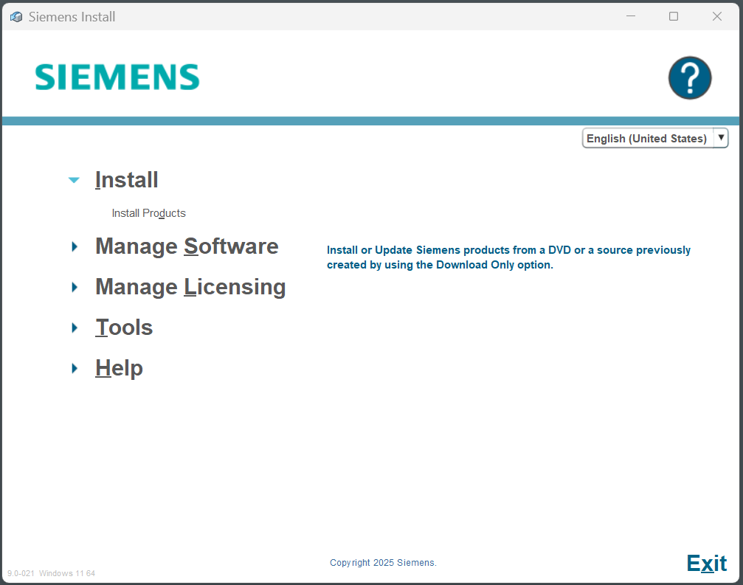
The Siemens Install window is displayed, as shown in Figure 2.
Figure 2: The Siemens Install Window
Click Install Products to begin.
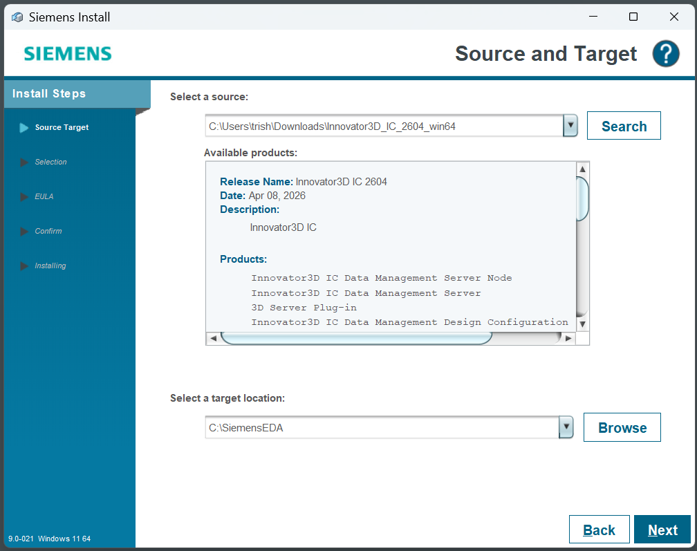
In the Source and Target window, select a target location for your installation and click Next, as shown in Figure 3.
Figure 3: The Source and Target Window
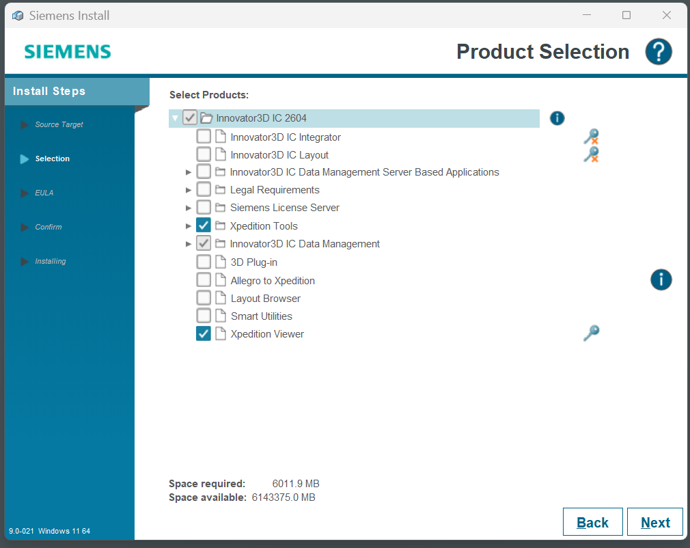
In the Product Selection window, choose which parts of Innovator3D IC you would like to use, as shown in Figure 4.
Note: You must be connected to CMC Microsystems’ Siemens licence server to continue at this point. Ensure that you have an active Appgate connection, and that you have selected the Siemens EDA entry in CADpass client.
Figure 4: The Product Selection Window
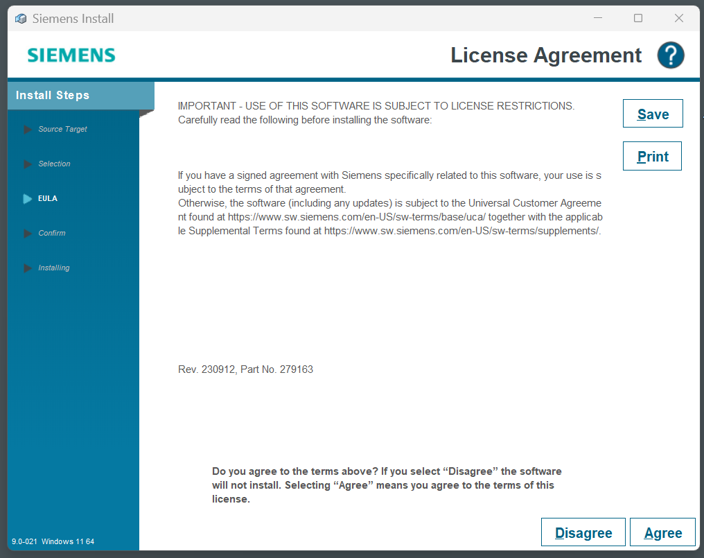
Click Next to continue. In the window License Agreement, click Agree to continue, as shown in Figure 5. Otherwise, cancel the installation.
Note: To learn more about this agreement, contact [email protected] for help. A copy of this agreement is also available online at
Figure 5: The License Agreement Window of the Innovator3D IC Installation Program
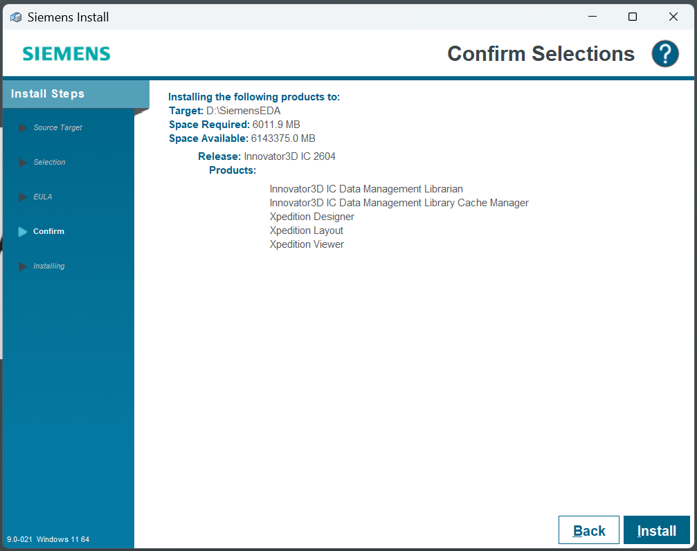
The next window shows which modules have been selected, as shown in Figure 6.
Figure 6: The Confirm Selections Window of Innovator3D IC Installation Program
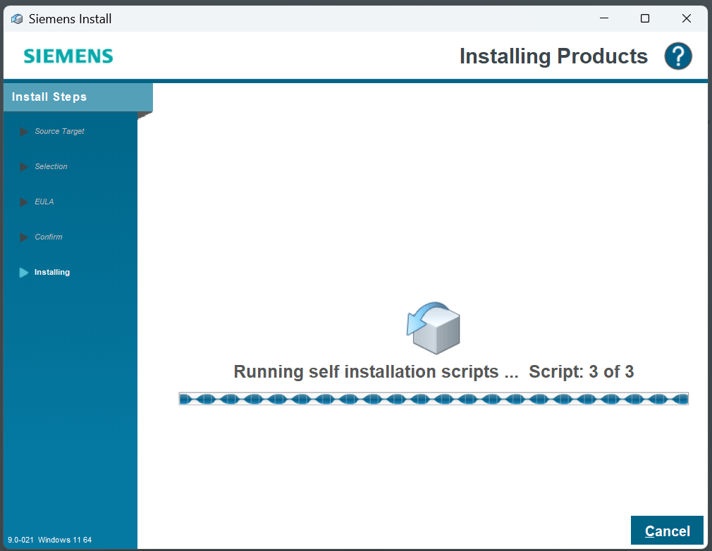
To install your chosen software, click Install to continue. The Installing Products window appears while dependencies are checked/updated and the main programs are installed (Figure 7).
Figure 7: Installation Progress is Displayed by the Program
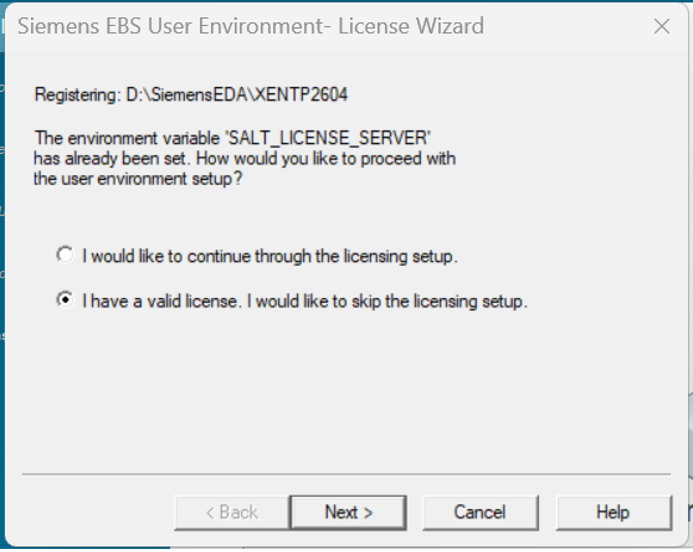
During the installation, a pop-up dialog will appear as shown in Figure 8. Because you selected the Siemens EDA option in Step 1, your licence access is already configured. Select “I have a valid license…’ and click Next.
Figure 8: The Siemens License Wizard Dialog
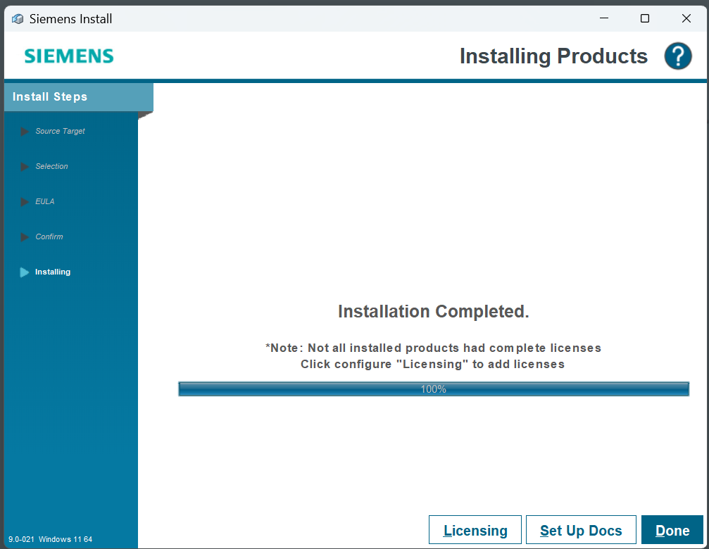
The Choose WDIR window appears. Select your local working directory and click Next to continue. In the Change Confirmation window that follows, click Finish. This launches the Siemens EBS Registrator. When this registrator is finished, the window Installation Completed appears, as shown in Figure 9
Figure 9: The Siemens Installation is Complete
Click Done. Click Exit to close the Installer.
At this point you are ready to begin using the software.
Log into CADpass client, select the Siemens license entry, and start Innovator3D IC. When using this software, your Appgate connection must be active all the time.
Troubleshooting
Sometimes firewalls or anti-virus programs block CADpass from reaching CMC Microsystems’ license server(s). If you cannot run this software, contact CMC Technical support for assistance.
You can run a verification of your Innovator3D IC installation using the Siemens installer on your computer. Under the Manage Software | Verify Installation selection, choose Innovator3D IC and click Verify.
References and Resources to Get You Started
To install a copy of the Siemens tutorials and manuals for Innovator3D IC, download both the HelpServer executable and the docs-innovator3d-ic file from the same location where you found the Innovator3D IC archive on the CMC website. Click on the HelpServer executable first to install it. For local use, do not change its default port settings, and do not allow HelpServer to be accessible over a network.
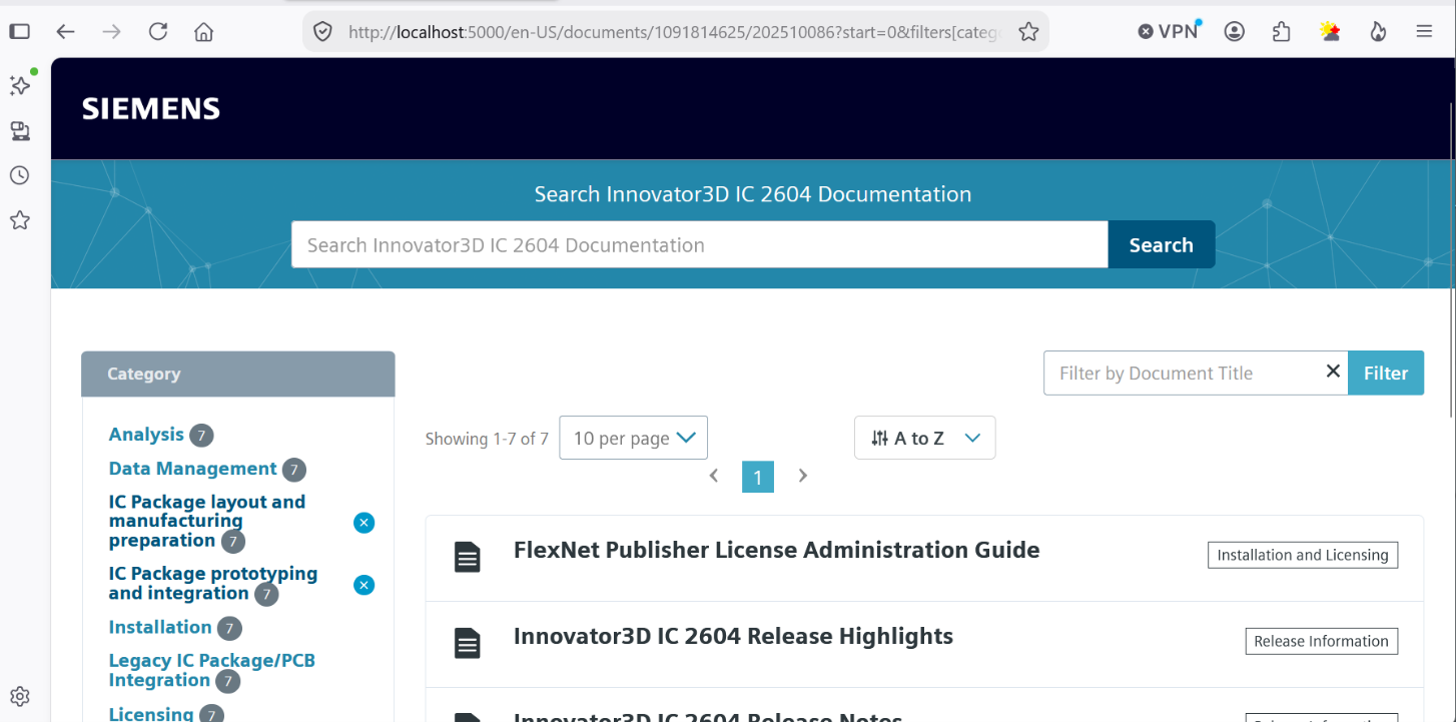
When the HelpServer installation is done, click on the docs-innovator3d-ic executable. It will proceed to add Innovator3D IC tutorials and manuals to your workstation. These documents can be searched and opened in a browser, as shown in Figure 10.
Figure 10: Local manuals installation for Innovator3D IC
You can open the Help Server from your Windows Start Menu under the heading “Siemens Help Server” or by using a desktop icon. Be sure to set your preferred access method when installing the HelpServer.
To apply for a Siemens EDA academic training account, one including online classes for software such as Innovator3D IC, contact [email protected] for assistance.
Does your research benefit from products and services provided by CMC Microsystems?