
CADpass client secure connection (will be referred to as CADpass client or CADpass in this document) is a utility provided by CMC Microsystems that creates a secure connection between client PCs, workstations, and computer sessions, and the CMC-managed infrastructure.
This quick start guide provides instructions for installing Keysight RSFOT, Code V, and LightTools software on a Windows 11 system using CMC Microsystem’s CADpass Client Secure Connection to access shared licenses on the CMC License Management System (LMS).
Prerequisites
- Professors, Research Supervisors, and their research teams must register with CMC at https://fabricinnovation.ca/member/.
- Professors and Research Supervisors can subscribe through the CMC subscription page at https://www.cmc.ca/subscriptions/.
- You must complete all required agreements for this software use, which may be obtained from CMC Technical Support.
- You must have administrator rights for the workstation on which you are installing this software.
- You must have a unique login name (Linux or Windows) that does not contain a blank space. A username such as “charlie brown” contains a space, while usernames such as “charlie.brown” or “charlie_brown” do not contain spaces.
The following are examples of unacceptable login names because they are not unique: “admin”, ”administrator”, ”root”, ”sysadm”, ”user”, ”owner”, ”student”, ”guest”, “temp”, and ”system”.
System Requirements
- PDF reader: To open some of the tutorials and manuals included with the software.
- File extraction program: To extract the downloaded program installation files from .zip format, such as 7-Zip or WinZip.
- 64-bit Windows: Windows 11.
- RAM Required: 8 GB minimum, 16G recommended (or more for extremely large models or large simulations).
Setting up CADpass Client for Use with Keysight Optical Solutions Group (RSOFT, Code V, and LightTools) Software
CADpass client is a CMC Microsystems license access client used by subscribers across Canada to connect to our secure license server(s).
- Follow the instructions in the quick start guide to download and install the CADpass client.
- Start the CADpass client and log in using your CMC Microsystems Username and Password.
- Currently, Keysight OSG tools are not integrated into the CADpass client. With Appgate SDP Connected, set the following environment variable on your system:
- Variable: OSG_LICENSE_FILE
- Value: [email protected]
Obtaining the Software
- Sign in to your CMC account.
- Go to the Keysight OSG download page and download the installation files.
Installing the Software
Note: These tools were previously owned and licensed by Synopsys and were acquired by Keysight in 2025. If you have older Synopsys Optical tools (RSOFT, Code V, or LightTools) installed on your system, you must remove them before installing Keysight OSG tools.
Installing Keysight OSG Tools
Note: The install process is similar for RSOFT, Code V, and LightTools. The CodeV installation is demonstrated in this guide.
- Locate the installer for your Keysight OSG tool:
- Code V: CODEV202503KEYS.exe
- LightTools: LightTools64_202503KEYS.zip
- RSOFT: rsoft_v2024.09-SP2-3-KEYS.exe
- To start the installer, follow these steps:
- For Code V and RSOFT, double-click the installer (*.exe).
The installer wizard appears. - For LightTools:
- Extract the zipfile.
An extracted folder is created, with the name LightTools64_202503KEYS. - From the extracted folder, run setup.exe.
- Extract the zipfile.
- For Code V and RSOFT, double-click the installer (*.exe).
- Follow the default prompts.
- When the dialogue License Installation Options appears, ensure the box My License is for Keysight Licensing is checked, as shown in Figure 1.
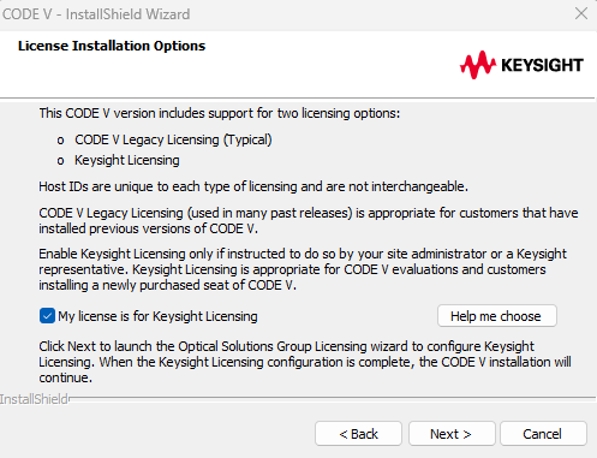
- Click Next.
The dialogue Setup – Optical Solutions Licensing appears, as shown in Figure 2.
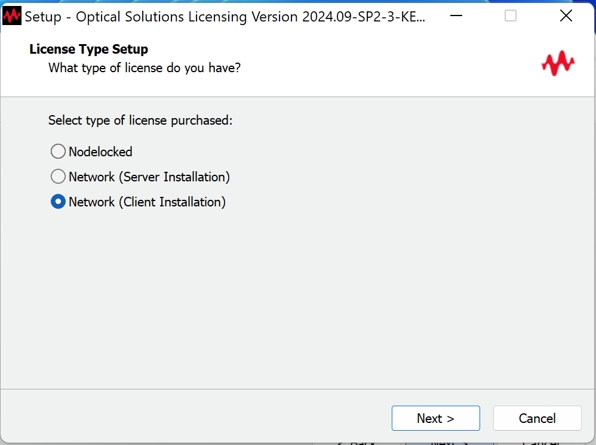
- Choose the License Type Network (Client Installation), and click Next, as shown in Figure 2.
The dialogue Network Client Setup appears, as shown in Figure 3.
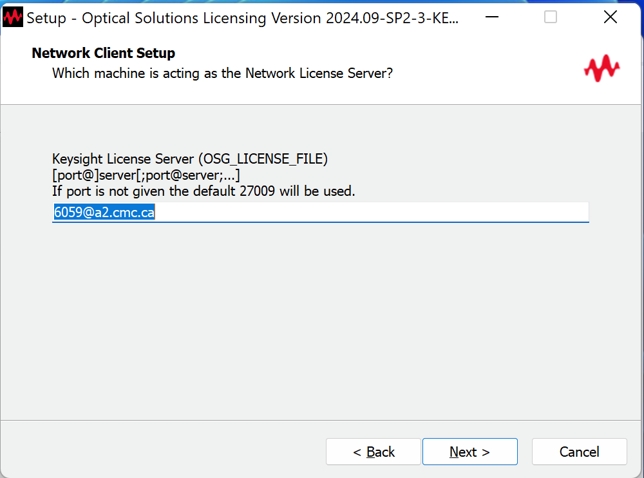
- Enter [email protected] as the port number@server name combination, as shown in Figure 3.
Note: Always check CADpass Licensing Information for the latest port number and license server name.
Starting a Keysight Optical Solutions Group Session
Running a Code V Session
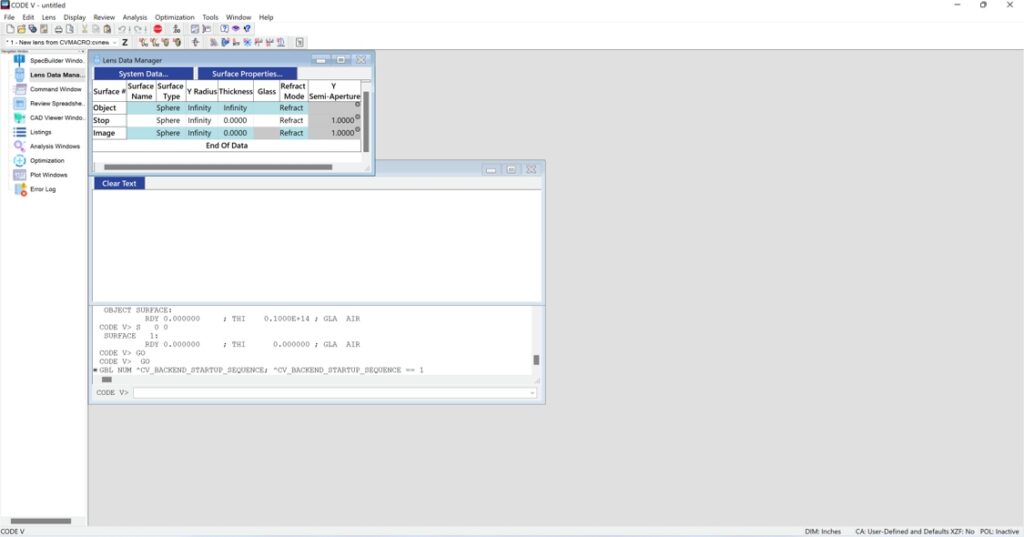
From Windows’ Start menu, open the folder CODE V yyyy.mm KEYS, and launch the program CODE V yyyy.mm KEYS.
The default GUI window appears, as shown in Figure 4.
Note: You may access CODE V user manuals from the Start menu or from the same directory where you installed the software.
Helpful Resources
Faculty and students can access online training and other resources directly from Keysight. Contact CMC support for additional details at https://www.cmc.ca/support/.