CADpass client secure connection (will be referred to as CADpass client or CADpass in this document) is a utility provided by CMC Microsystems that creates a secure connection between client PCs, workstations, and computer sessions, and the CMC-managed infrastructure.
This quick start guide provides instructions for installing NI LabVIEW and Multisim on a Windows system using CMC Microsystems’ CADpass to access shared licenses on the CMC License Management System (LMS).
Prerequisites
- Professors, Research Supervisors, and their research teams must register with CMC at https://fabricinnovation.ca/member/.
- Professors and Research Supervisors can subscribe through the CMC subscription page at https://www.cmc.ca/subscriptions/.
- You must complete all required agreements for this software use, which may be obtained from CMC Technical Support.
- You must have administrator rights for the workstation on which you are installing this software.
- You must have a unique login name (Linux or Windows) that does not contain a blank space. A username such as “charlie brown” contains a space, while usernames such as “charlie.brown” or “charlie_brown” do not contain spaces.
The following are examples of unacceptable login names because they are not unique: “admin”, ”administrator”, ”root”, ”sysadm”, ”user”, ”owner”, ”student”, ”guest”, “temp”, and ”system”.
Setting up CADpass Client for Use with NI LabVIEW
CADpass client is a CMC Microsystems’ license access client and is used by subscribers across Canada to connect to our secure license server(s).
- Follow the instructions in the quick start guide to download and install CADpass client.
- Start CADpass client and then log in using your CMC Microsystems Username and Password.
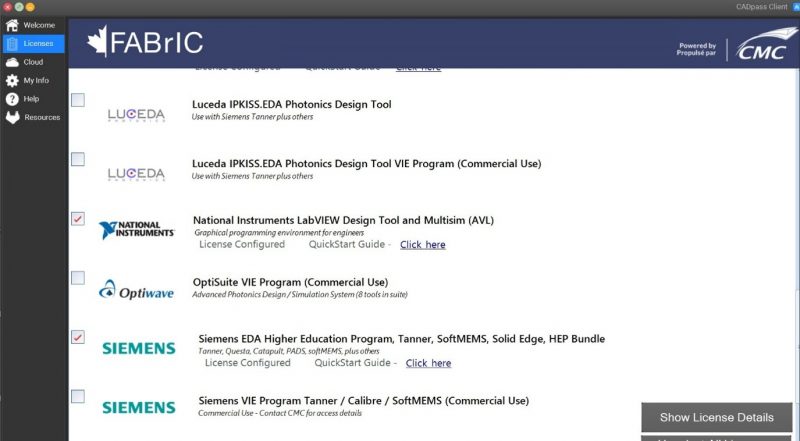
- When the CAD access window appears, double-click NI LabVIEW Design Tool.
A red checkmark appears next to the entry, as shown in Figure 1. Leave this checked while you are using the software. You must also have a copy of the Appgate SDP tunnel client active while using the software. This tunnel connects your computer to our licence server network.Â
Obtaining the Software
There are two locations where you can download the LabVIEW and Multisim installers.
From Vendor
- Download URL: https://www.ni.com/en/support/downloads/software-products/download.academic-volume-license.html
- Version: Only the latest release
From CMC
- Download URL: https://www.cmc.ca/tools/.
- Version: Some of the earlier installers are available for those who are running older virtual instruments (VI’s) or code.
Note: The remainder of this guide focuses on installing LabVIEW, though the steps for installing Multisim are similar.
Installing LabVIEW
- Click the executable NI package installer.
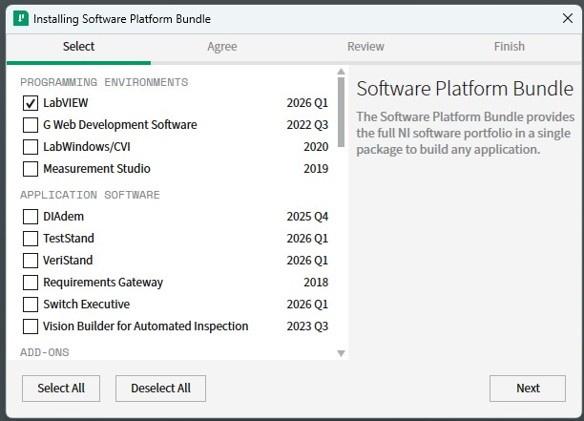
- Select the software tool and features that you wish to install, and click Next (see Figure 2).
- Choose any additional items you may wish to install, and click Next.
- Read over the licence agreements that are presented to you, and accept them to continue.
Note: If you are unsure of your obligations under these agreements, contact [email protected] to discuss your concerns.
- Click Next.
A summary of the software modules that will be installed is displayed. - Click Next to proceed, or Back to make changes to your selections.
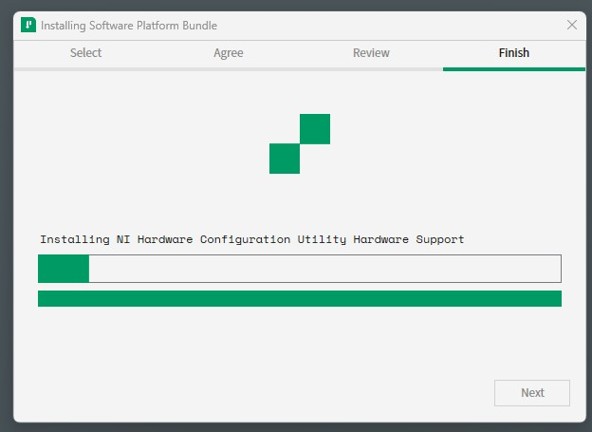
- Finish the rest of the installation (see Figure 3).
- After the installation is finished, you must reboot your computer to complete this procedure.
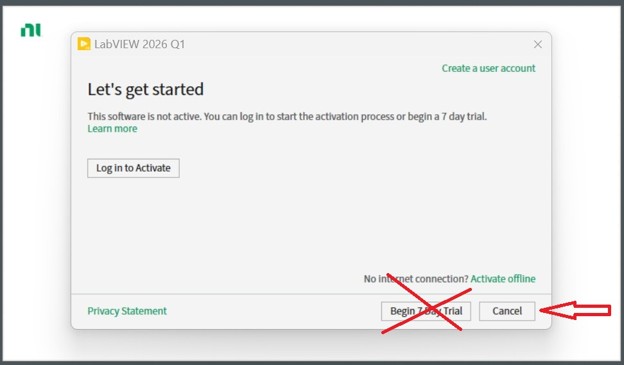
Note: If you are prompted to activate the 7-day trial license, do not select this option. Click Cancel to close the window, as shown in Figure 4.
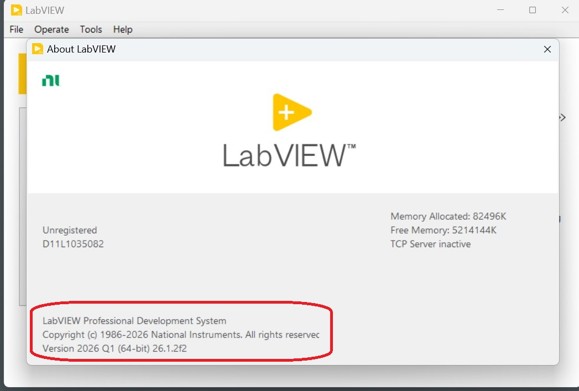
- After your computer has rebooted, run CADpass Client and ensure that the license server is connected using the Appgate SDP tunnel. When you start LabVIEW, the license should display as LabVIEW Professional Development System, as shown in Figure 5.
Installation Assistance
- If you are unable to launch a copy of LabVIEW, open a support case, and we will assist you with debugging.
- To add or remove LabVIEW modules, the vendor strongly recommends using its Package Manager, which is included in the installation. You will find a link to it on your computer under Start Menu | National Instruments | NI Package Manager.
- Knowledge Base articles are available on the vendor’s website: https://www.ni.com/en/support.html
Training, Tutorials, and Resources for Subscribers
- The NI website has a Community Forum for programmers: https://forums.ni.com/
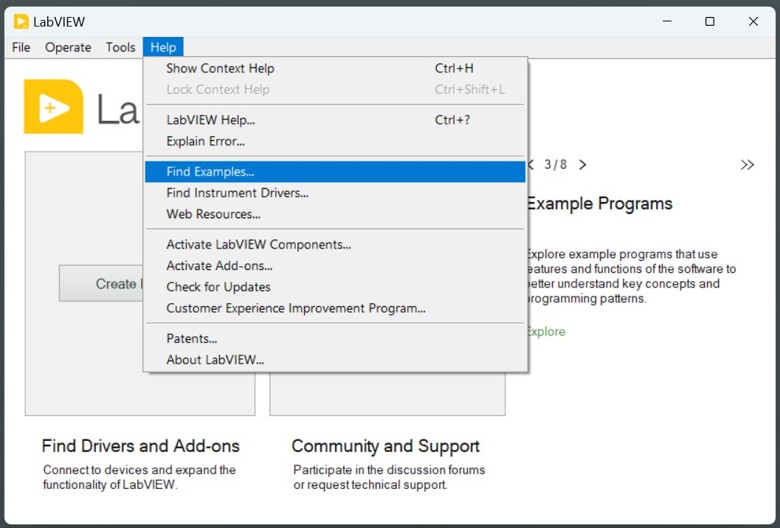
- The Help menu in the LabVIEW GUI has links to examples and manuals, as shown in Figure 6.
Related Links
CMC Microsystems Equipment Rentals: https://www.cmc.ca/equipment/.