Quick Start Guide: Installing SolidWorks 2025 Software via CADpass Client Secure Connection

Licensing Requirements or Restrictions
Usage terms and conditions apply to this software. For more information, refer to Licensing Requirements or Restrictions on the associated product page:

Table of Contents

CADpass client secure connection (will be referred to as CADpass client or CADpass in this document) is a utility provided by CMC Microsystems that creates a secure connection between client PCs, workstations, and computer sessions, and the CMC-managed infrastructure.

The following information will help you download, install, set up, and use SolidWorks 3D solid modelling software from Dassault Design Systèmes (DDS) with the CMC License Management System (LMS). Installation and licensing of this software have been validated on a workstation with a Windows 11, 64-bit operating system.

Prerequisites

  • Professors, Research Supervisors, and their research teams must register with CMC at https://fabricinnovation.ca/member/.
  • Professors and Research Supervisors can subscribe through the CMC subscription page at https://www.cmc.ca/subscriptions/.
  • You must complete all required agreements for this software use, which may be obtained from CMC Technical Support.
  • You must have administrator rights for the workstation on which you are installing this software.
  • You must have a unique login name (Linux or Windows) that does not contain a blank space. A username such as “charlie brown” contains a space, while usernames such as “charlie.brown” or “charlie_brown” do not contain spaces.

    The following are examples of unacceptable login names because they are not unique: “admin”, ”administrator”, ”root”, ”sysadm”, ”user”, ”owner”, ”student”, ”guest”, “temp”, and ”system”.
System Requirements

Setting up CADpass client for Use with SolidWorks Software

CADpass client is a CMC Microsystems’ license access client and is used by subscribers across Canada to connect to our secure license server(s).

  1. Follow the instructions in the quick start guide to download and install CADpass client.
  2. Start CADpass client and then log in using your CMC Microsystems Username and Password.
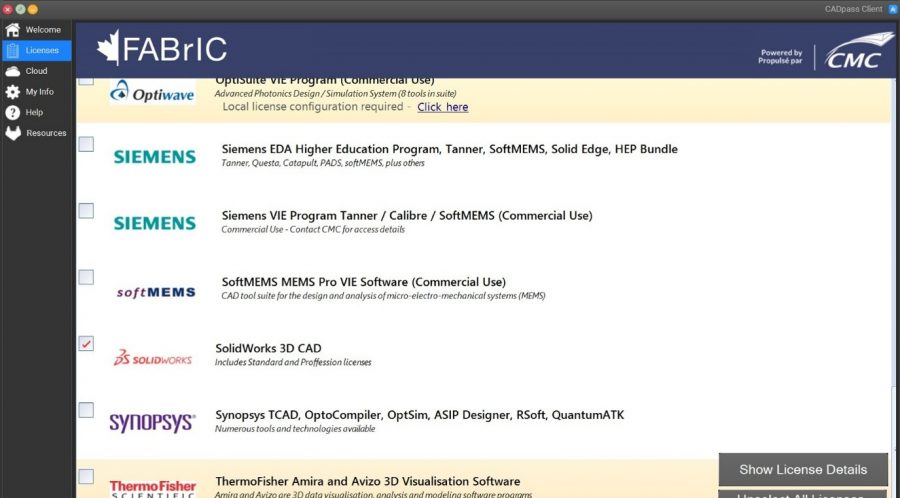
  3. When the CAD access window appears, double-click SolidWorks.
    A red checkmark appears next to the entry, as shown in Figure 1. Leave this checked while you are using the software.
CQSG-0117-fig1
Figure 1: The SolidWorks Selection in CADpass Client

Obtaining the Software

Download the universal installer file from https://www.cmc.ca/tools/.

Installing the Software

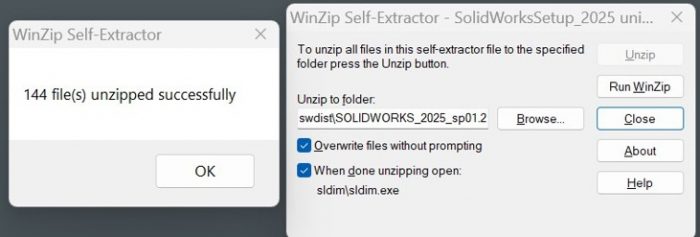
  1. Double-click the downloaded installer SolidWorksSetup and unpack the contents using the WinZip utility or equivalent application.
    WinZip is used for demostration purpose in this guide. The extracted files window appears, as shown in Figure 2.
CQSG-0117-fig2
Figure 2: Unpack the SolidWorksSetup Installer using a ZIP Utility
  1. Browse to the folder where you want the installation.
  2. Check the two boxes as shown in Figure 2, and click Close.
    The sldim.exe installer opens as requested.
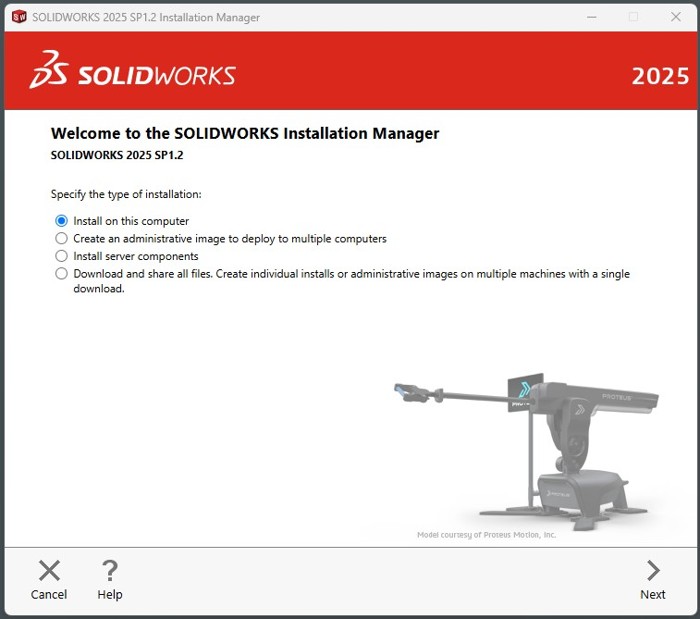
    The window SolidWorks Installation Manager appears, as shown in Figure 3.
Figure 3: Welcome to SolidWorks Installation Manager Window
  1. Choose Install on this computer and then click Next.
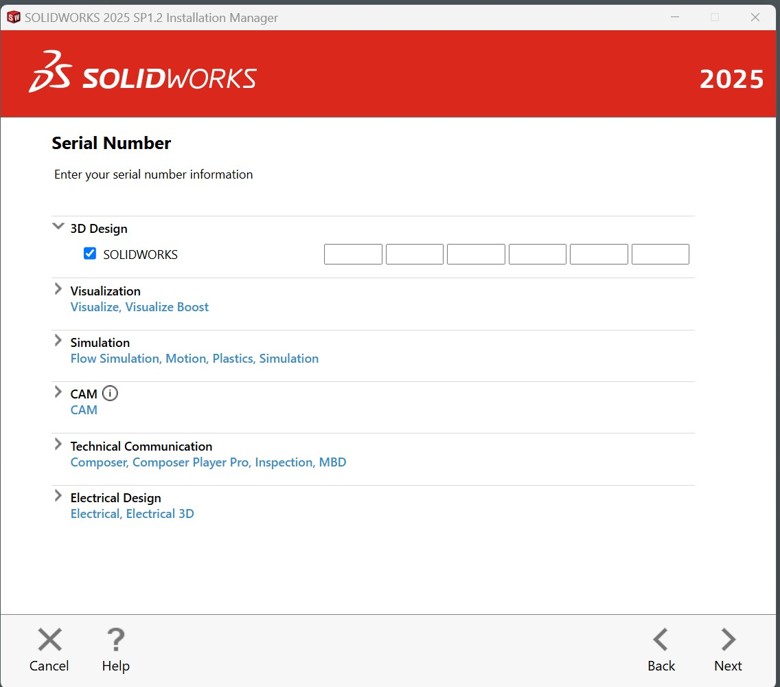
    The Serial Number window is displayed, as shown in Figure 4.
Figure 4. The SolidWorks Serial Number Window
  1. Do the following:
    1. Enter the correct serial number. If you don’t have it already, contact [email protected] to get it. We will provide this to you. You do not have to enter individual serial numbers per feature.
    2. Click Next. The installer will verify this serial number externally.
      If a newer version of the software is available, you will be asked if this is preferred. The choice is up to you.
    3. Click Next.
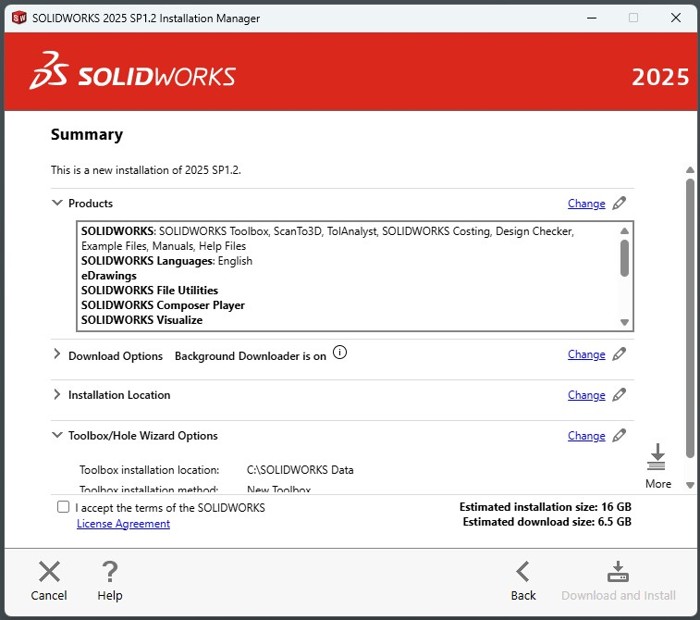
      The Summary window is displayed, as shown in Figure 5.
Figure 5: Summary Window
  1. Check I accept the terms of the SOLIDWORKS License Agreement.
    The button Download and Install becomes active.

    Note: If you are unsure of your obligations under this agreement, contact [email protected] to discuss them.

  2. Click Download and Install.
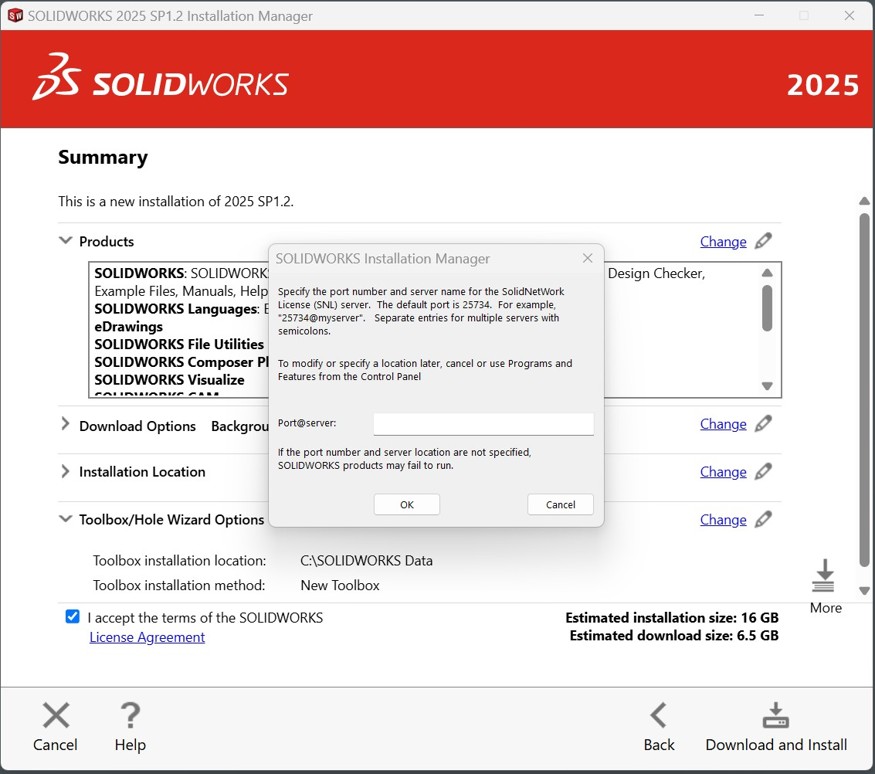
    The SolidWorks installation manager displays a pop-up dialogue requesting a license port@server address, as shown in Figure 6.
Figure 6: Pop-up Dialogue Requesting License port@server Address
  1. Click Cancel.
  2. When prompted by the installer, “Do you want to continue without a valid SNL server?“, click Yes.
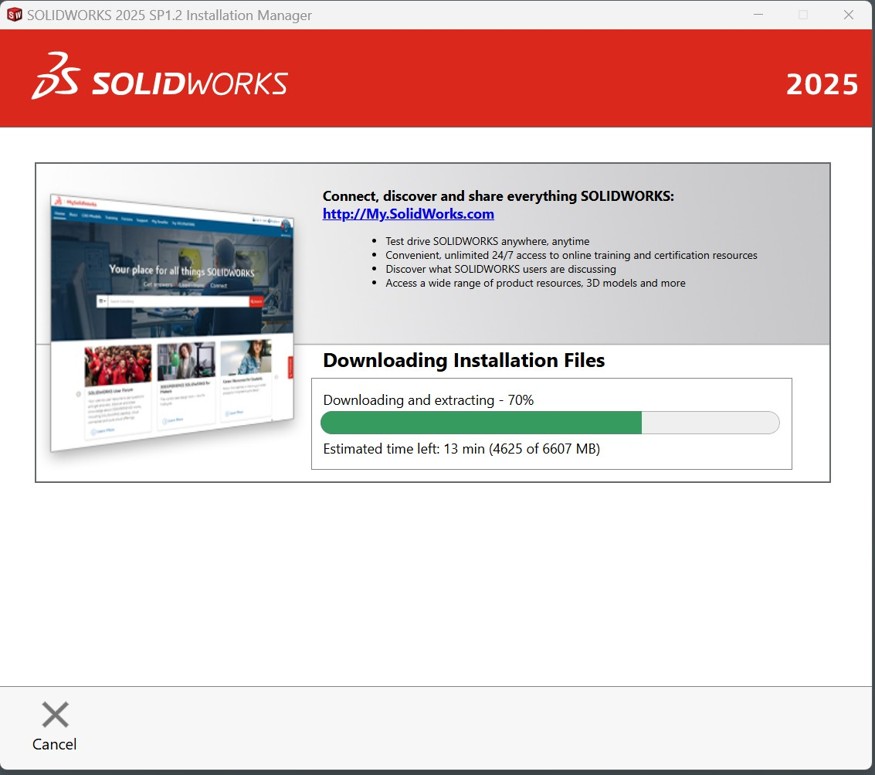
    The SolidWorks Installation Manager begins downloading the program from the company’s website, as shown in Figure 7.
    Once downloaded, the software will automatically begin installing. The time required to complete this task depends upon your connection speed.
Figure 7: Downloading the Software

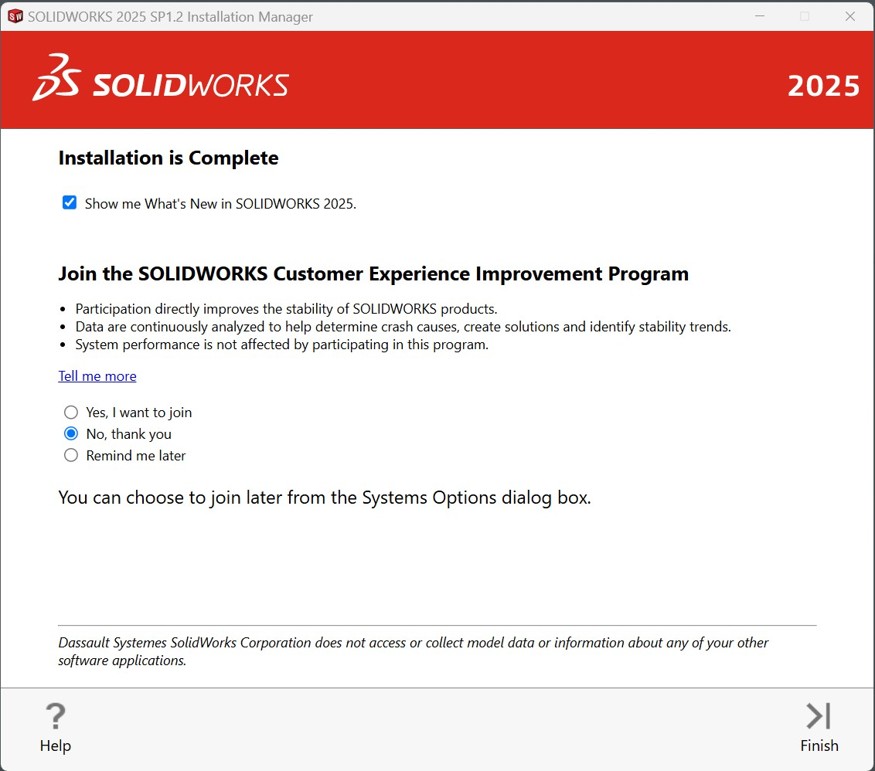
When the program has completed its tasks, the Installation Manager displays the button Finish, as shown in Figure 8. It is your choice to join the Customer Experience Improvement Program.

Figure 8: The Finish Tab
  1. Click Finish to close the Installation Manager.
    If you check Show me What’s New in SOLIDWORKS 2025, the software will launch a *.pdf file containing this information.

Setting up SolidWorks License Access

To configure the SolidNetWork license manager:

  1. Ensure that CADpass is running and that you have a checkmark beside the SolidWorks entry (Figure 1), and sign in to the AppGate client.
  2. From the Windows Start menu, select Programs | SolidWorks 202x | SolidNetWork License Manager Client.
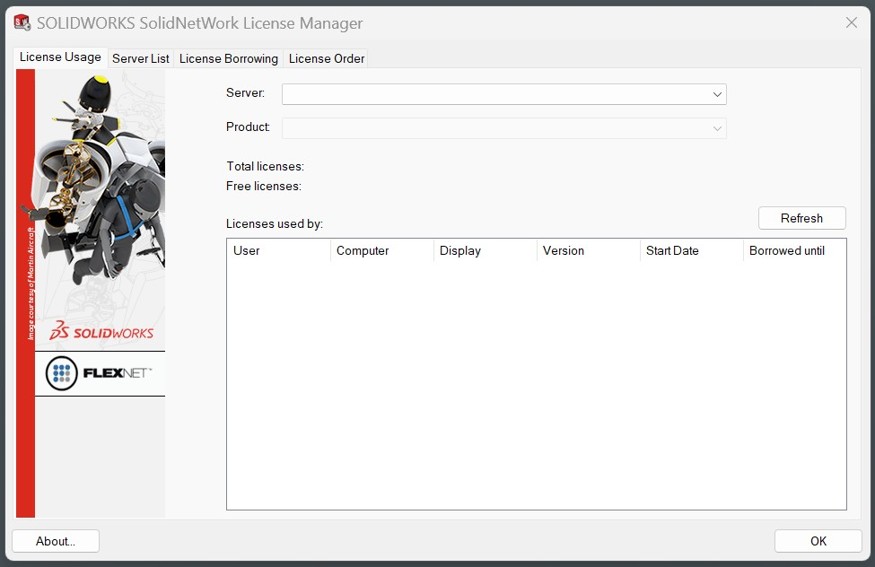
    The SolidWorks SolidNetWork License Administrator appears with the tab License Usage displayed, as shown in Figure 9.
Figure 9: License Usage Tab in the SolidNetWork License Manager
  1. Select the tab Server List.
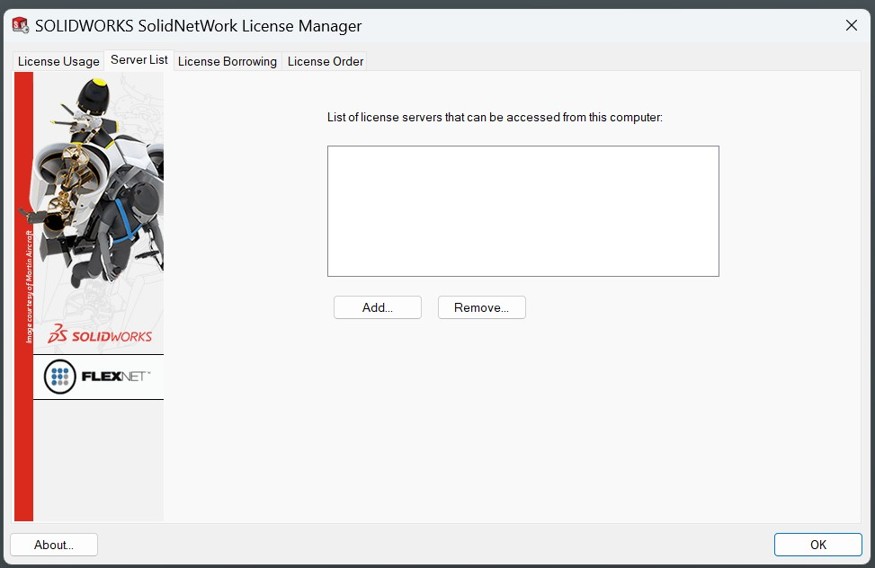
    The Server List tab is displayed, as shown in Figure 10.
Figure 10: Server List Tab in the SolidNetwork License Manager
  1. Depending on the contents of the List of license servers pane, do one of the following:
    • If the correct CMC Microsystems license server name (see Step 6 for the server name) is in this list, the license manager does not need to be modified. Click OK to close the SolidWorks SolidNetWork License Manager.
    • If the CMC license server name is not in the list, continue to Step 5.
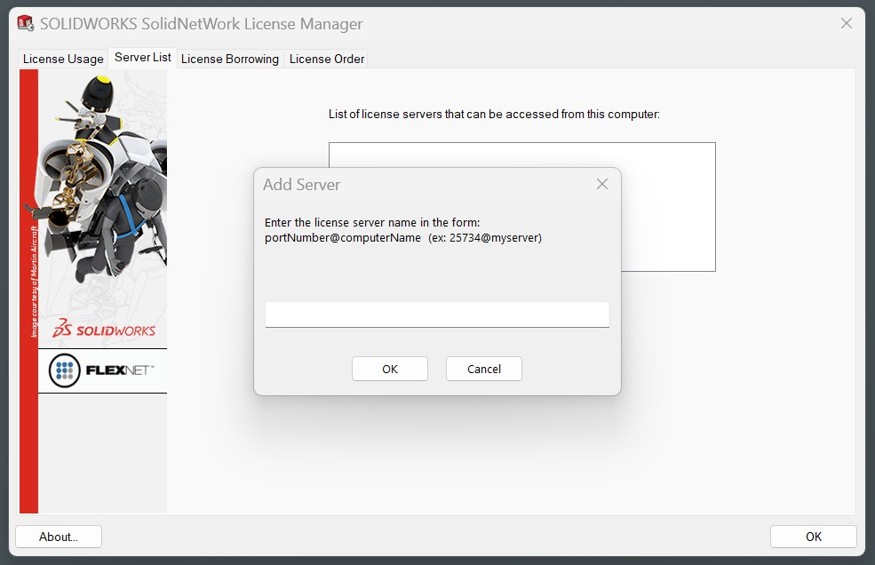
  2. Click Add.
    The dialogue Add Server appears, as shown in Figure 11.
Figure 11: Add Server Dialog in the SolidNetwork License Manager
  1. Enter the port and server name [email protected] then click OK.

Note: Always check CADpass Licensing Information for the latest port number and license server name.

  1. From the List of license servers… in the tab Server List (see Figure 10), delete the entries other than the one you entered, if there are any, and then click OK.
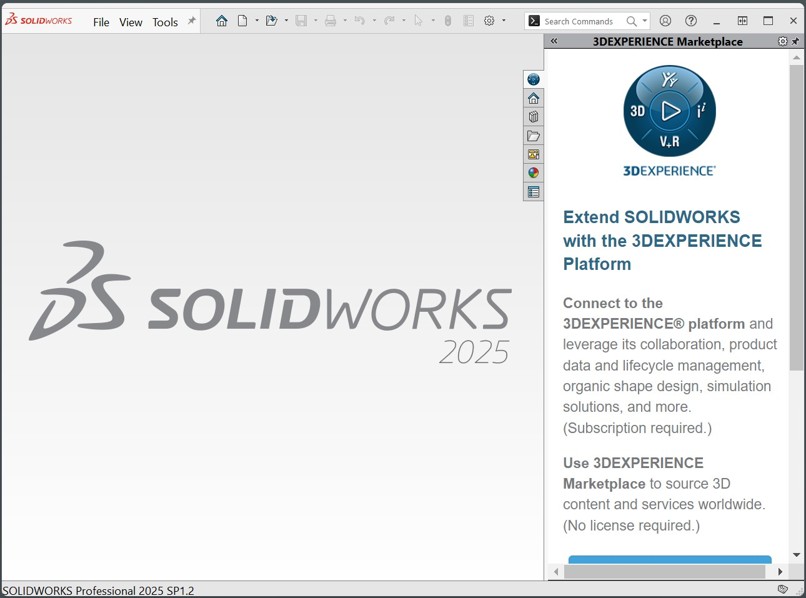
    You can now run the SolidWorks software. The main window looks like that in Figure 12.
Figure 12: The Main Window of SolidWorks 2025 SPx

If you have problems at any stage of these instructions, open a support case with CMC Microsystems.

How the SolidWorks License Functions

Dassault Design Systèmes (DDS) offers 3D solid modelling software called SolidWorks (SW). CMC Microsystems’ SW license file contains both Professional and Standard license features in the same file, as well as the standard CAM module and a Visualisation utility.

For descriptions of the features in this license file, see:

When you have completed your layout work for the time being, close your program instance, so that your license seat becomes free for others to use.

Additional Support Resources

If you want to learn more about this software, visit these SolidWorks webpages:

Does your research benefit from products and services provided by CMC Microsystems?
Scroll to Top
Our office is closed today in observance of Canada Day and will resume operations on the next business day. We’ll respond to your message as soon as possible when we’re back.
Wishing you a wonderful and safe Canada Day!
Skip to content